

Work with your deals on the board and in the table
The board answers “where is everything in the pipeline?” at a glance. The table is for getting through a list quickly: sort by amount, find every deal closing this quarter, fix ten stages in a row, hand a batch of deals to a colleague. Both show the same deals, filtered the same way, so switching between them never loses your place.
Switch between the board and the table
Section titled “Switch between the board and the table”Open Deals. The two buttons at the top right, next to New Deal, switch between the Board view and the Table view. Routario remembers the one you picked, so the next time you open Deals it opens the same way.
The tabs under the title narrow both views by outcome: All, Open, Won and Lost. On the board, Won shows only your won column, and so on.
On the board, drag a card to another column to move the deal to that stage. Each column heading shows how many deals it holds and what they’re worth: the one-time amounts added up and, underneath, the recurring amounts per month (/mo). Each sum shows only when it isn’t zero, and the two are never added together. If an administrator has described a stage (for example what must be true before a deal is Qualified), a question-mark icon beside the stage name shows that description.
Find the deals you need
Section titled “Find the deals you need”The row above the deals is the same in both views, and it stays pinned to the top of the page while you scroll.
- Search deals… matches the deal’s name or its company’s name. The list narrows as you type. Press Enter to keep the search in the page address, so a reload or a link you send keeps it too.
- + Filter narrows by Stage, Owner, Company, Lost reason, Close date (a from/to range), One-time (main currency) or Recurring (main currency) (each a minimum and/or maximum). Each filter you apply shows as a chip; click the chip’s × to remove it.
- Filter by tag narrows to deals carrying the tags you pick.
Every filter is part of the page address. Bookmark a filtered list, or paste it to a colleague, and they see the same deals.
Export your deals to CSV or Excel
Section titled “Export your deals to CSV or Excel”For a forecast in a spreadsheet, a board report or a list to hand to your accountant, click Export at the top right, next to New Deal, and pick CSV or XLSX.
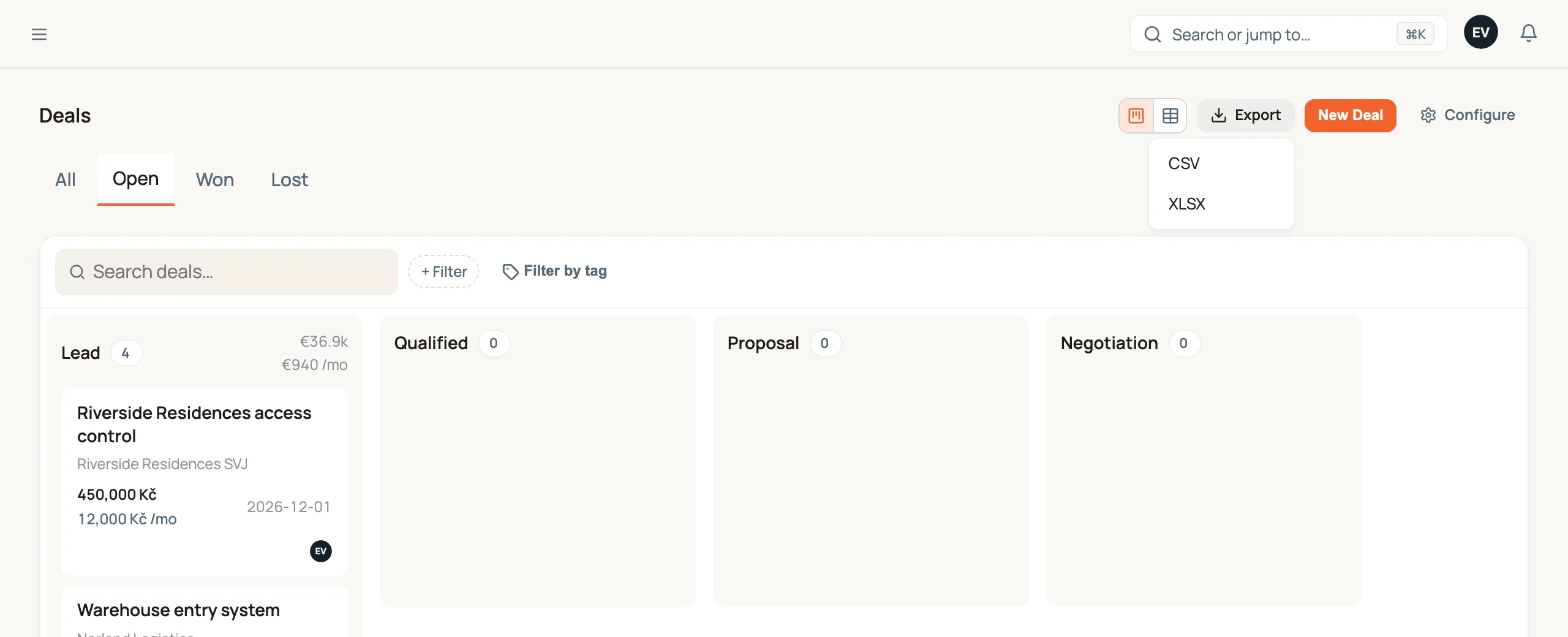
The file holds the deals you’re looking at: the All / Open / Won / Lost tab, every + Filter chip, Filter by tag, and a search you’ve confirmed with Enter all apply. Grouping doesn’t change which deals are in it, and the file is one flat list. Archived deals are never included.
Each deal is one row, with its fields written out as a person reads them, never as internal codes:
| Columns | What they hold |
|---|---|
| Deal, Name, Company | The deal’s number (DEAL-14), its name and its company. |
| Stage, Status | The stage, and whether that makes the deal Open, Won or Lost. |
| One-time amount, Recurring amount (per month), Currency | Both amounts in the deal’s own currency. |
| One-time amount (main currency), Recurring amount (main currency, per month) | The same amounts converted to your workspace’s main currency, so deals priced in CZK and EUR add up in one column. |
| Expected close, Next step, Next step due | The close date, and the deal’s next open task with its due date. |
| Owner, Primary contact, Source, Referred by | Who it belongs to and where it came from. |
| Lost reason, Lost reason detail | Why a lost deal was lost. |
| Tags, Created, Updated, Closed | Its tags, separated by commas, and its dates. |
Your own fields follow as extra columns, one per field (see Add your own fields to deals).
Amounts are plain numbers, without spaces or a currency sign, so the spreadsheet can add them up. Dates are written as 2026-12-31. The CSV opens in Excel with Czech characters intact, and the file is named after the day you exported it, for example deals-2026-09-25.xlsx.
Every export is recorded under Logs → Changes, category Access, with who exported, in which format and how many deals. See See what happened: the Logs page.
Import deals from a spreadsheet
Section titled “Import deals from a spreadsheet”Already keep your pipeline in Excel? Click Import at the top right, next to Export, and bring it in. The steps are the same as importing into a table:
- Upload a CSV or Excel file, one deal per row. Leave First row is a header ticked if your columns have names.
- Map columns. Routario matches your columns to deal fields by name; fix any it got wrong, and leave the rest on Don’t import. Only Deal and Company are required.
- Result shows how many deals were added and updated, and lists any row that couldn’t be imported with the reason. Download error report gives you those rows back as a CSV to fix and upload again.
How each row is read:
| Field | What happens |
|---|---|
| Company, Company website or domain | Found if you already have it (by website first, then name); otherwise created. |
| Deal | If that company already has a deal with this name, the row updates it instead of adding a second one. |
| Stage | A stage name as it appears on your board (Negotiation). Left empty, the deal starts in the first stage. A Lost deal needs a Lost reason. |
| One-time, Recurring (per month), Currency | Numbers the way you write them (1 250 000 or 1250000). |
| Expected close | 2026-09-21 or 21.9.2026. |
| Owner | A teammate’s name or email. Left empty, the deal is yours. |
| Person, Person’s email | The deal’s primary contact, matched by email. |
| Source, Note | Where the deal came from, and a note added to the deal. |
Two people with the same name are never merged. If a row names a person without an email, or with an email nobody has, and you already have a different contact with that name, the deal is imported without its person. The Result step lists those rows so you can add the right person by hand.
Each import is recorded under Logs → Changes with how many deals were added and updated.
A deal’s two amounts: one-time and recurring
Section titled “A deal’s two amounts: one-time and recurring”A deal can be worth money once, every month, or both: a website build plus its hosting, hardware plus a service contract. So every deal has two amounts, in one currency:
- One-time: what the deal brings in once (a project, hardware, a setup fee).
- Recurring: what it brings in every month (a subscription, a service fee), shown as 25 000 Kč / month, or 25 000 Kč /mo on a board card.
Both are always there: in the New Deal dialog (side by side, with the currency after them), as two columns of the table, in the deal’s drawer and on the deal’s page. Either can stay empty, shown as —. Click one to set or change it, the same way as the close date. Change the deal’s Currency and both amounts follow it.
Type an amount the way you would write it: 25000, 25 000, 1 250,50 or 1,250.50. When you leave the field it’s rewritten the way Routario shows money, so you see exactly what will be saved. An amount can’t be negative; Routario refuses one and says which amount.
Work through the table
Section titled “Work through the table”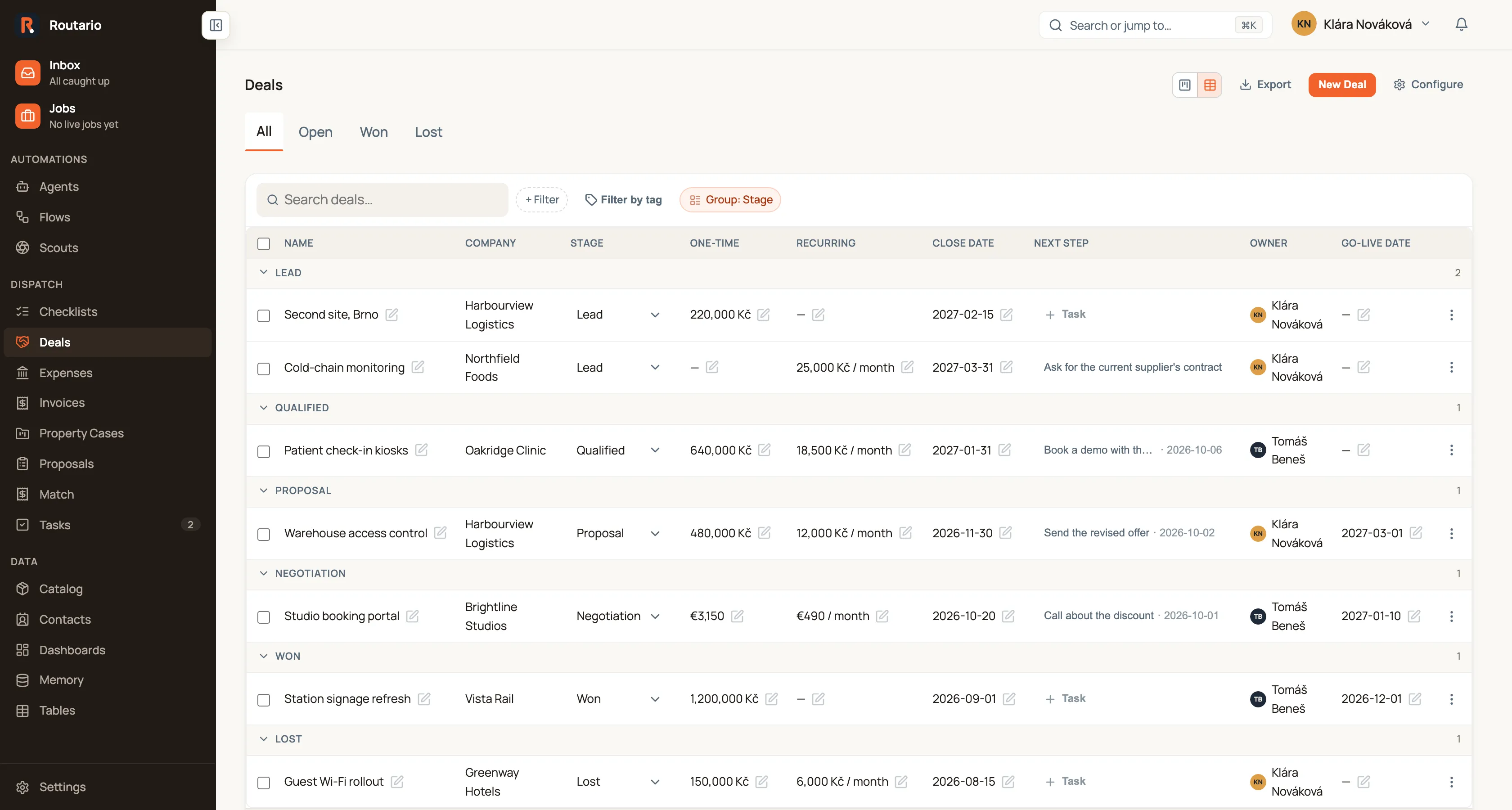
- Sort by clicking a column heading. An amount sorts by its value in your main currency, dates as dates, and Stage in pipeline order.
- Edit in place: click a deal’s name, one-time or recurring amount, or close date to change it, then press Enter or click away to save. Pick a new Stage from the dropdown on the row. The deal’s card on the board and its drawer follow straight away.
- Open a deal by clicking anywhere else on its row. Its drawer opens with everything else: contact, source, referrer, notes, tasks and documents.
- Change the stage from the deal’s own page: click the Stage value in the Deal card, or the stage badge under the deal’s name, and pick another stage. It is the same move as on the board and in the table (a Lost stage asks why), and the badge follows straight away.
- Group (in the filter row, table view only) puts the rows under headings by Stage (in pipeline order), Owner or Company. Click a heading to fold it. Sorting then sorts within each group. Deals with no owner or company are grouped under ”—”, at the end. Choose No grouping to go back to one list.
Your own fields appear as extra columns after Owner. See Add your own fields to deals.
A deal’s next step is its next task
Section titled “A deal’s next step is its next task”The Next step column, and the line under each card on the board, show the deal’s next open task: the one due soonest, with its due date. A task without a due date comes after every dated one. Tasks that are done or cancelled don’t count.
- Click the next step to open that task.
- An open deal with no open task shows No next step, in amber. Click it to create a task already attached to the deal. Once saved, it becomes the deal’s next step.
On open deals the due date reads the way you’d say it: 3 days overdue (in red), Today (in green), Tomorrow, in 4 days, and after a week the date itself. Won and lost deals have nothing to chase, so they show none of this.
How long a deal has sat in its stage
Section titled “How long a deal has sat in its stage”Every open deal also shows how long it has been in its current stage: 12 days in stage under the card, and an In stage column in the table that you can sort to find the ones that stopped moving. After 30 days in one stage the count turns amber and bold.
The clock restarts whenever the deal changes stage, however it was moved: dragged on the board, picked on the deal page or in the table, moved in bulk, or moved by a flow. Renaming the deal or changing its amounts doesn’t reset it.
So “what happens next on this deal?” always has one answer, and it lives with the rest of your to-dos. Complete the task, and the next one due takes its place.
Close a deal: Won or Lost
Section titled “Close a deal: Won or Lost”An open deal has Won and Lost buttons: at the top right of its page, and at the bottom of its drawer on the board. Won moves it to your pipeline’s won stage. Lost moves it to the lost stage and asks why, the same as picking Lost from the Stage dropdown. Once a deal is closed the buttons disappear; move it back to an open stage and they return.
The deal’s page also shows and edits its Owner and Source, the same fields as the drawer.
What happened on a deal: History
Section titled “What happened on a deal: History”A deal’s page ends with its History: everything that happened on it, newest first, in one list.
- Stage moves: Moved from Qualified to Negotiation.
- Changes to its amounts, close date, owner or source: Changed One-time from 400 000 Kč to 450 000 Kč.
- Notes, with their first lines.
- Tasks: when one was planned and when it was done. Click it to open the task.
- Documents and emails: those filed on the deal, and those Routario found about its company and people.
Each entry says who did it and when. The latest twelve show; Show all opens the rest.
Actions on one deal
Section titled “Actions on one deal”The ⋮ menu at the end of each row has:
- Add task: a new task on this deal.
- Duplicate: a new deal called <name> (copy), with the same company, stage, amounts, currency, close date, owner, source, referrer and your own fields. Notes, tasks, tags and documents are not copied: they belong to the original deal’s history. Useful when one customer runs several projects.
- Archive: removes the deal from the board and the table, after you confirm. An Undo appears for a few seconds afterwards.
Archiving is for a deal that shouldn’t be in the pipeline at all (a duplicate, a test, a mistake). A deal you didn’t win belongs in a Lost stage, where it still counts in your reports. The drawer keeps Archive too, as a quiet button next to Won and Lost.
Who is on a deal
Section titled “Who is on a deal”A deal is rarely one person. Someone signs, someone else pays, and a third person will use what you sell. The People card on a deal’s page lists who is involved and in what role, so anyone picking the deal up knows who to call about what.
Add someone you already have. Start typing a name in Search contacts, or type a new name…, pick the person, choose a role (or leave No role) and press Add person. The deal’s primary contact is always on the list, first.
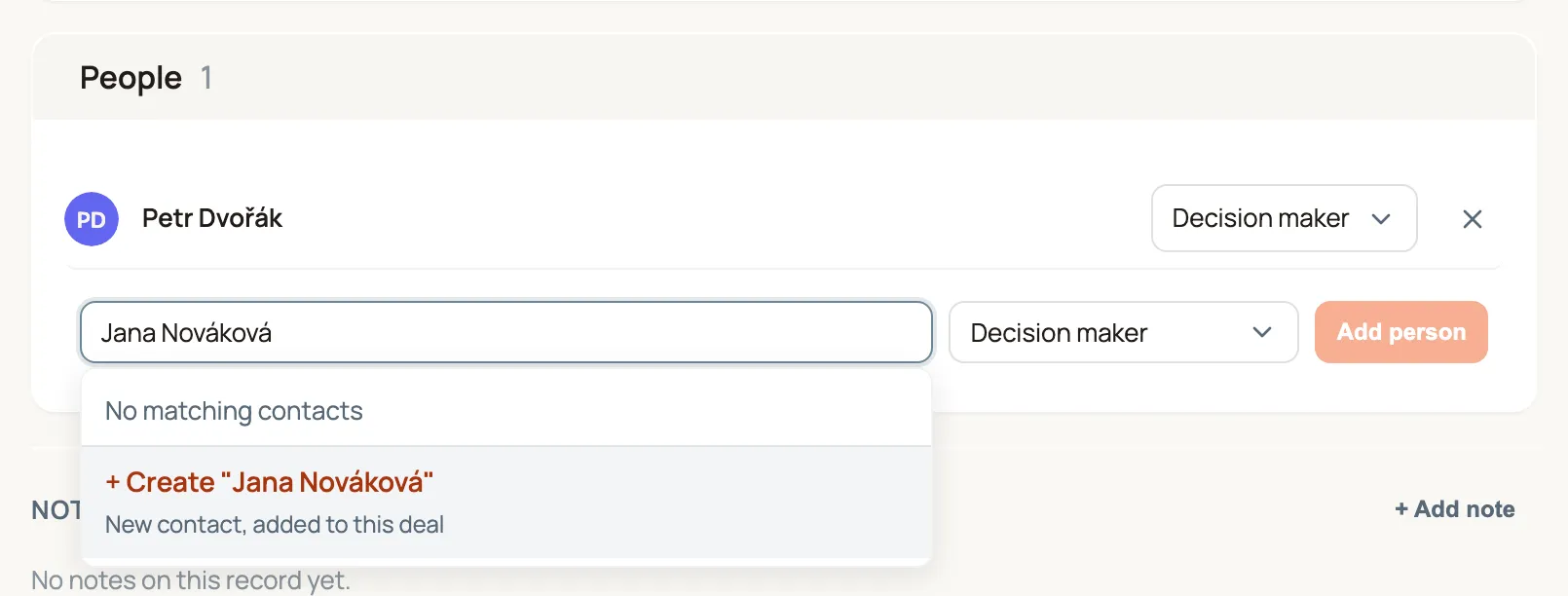
Add someone new, in the same step. When the name you typed matches no contact, the list offers + Create “the name”. Choose it with a click, or just press Enter: the first row is already highlighted. Routario then does three things at once:
- It creates the contact.
- It files them under the deal’s company.
- It puts them on the deal in the role you chose.
You stay on the deal, and the page confirms <name> created and added to the deal. The option also appears below partial matches, so typing Jan Novák when you already have Jan Nováček still lets you create the new person.
Routario never makes a second copy of someone you already have. It uses the existing contact instead of creating one when:
- you typed an email address that one of your contacts already has;
- someone with that name already works at the deal’s company;
- a contact with that name exists anywhere in Contacts.
“That name” ignores upper and lower case and extra spaces, but not accents: Kutáč and Kutac can be different people. A contact found this way keeps the company they already had.
Typing an email address works too. Type jana.novakova@geosan.cz and the new contact gets that email, with the name Jana Novakova read from it. An address that doesn’t look like a name, such as info@geosan.cz, becomes the contact’s name as well, so you can rename them afterwards. A contact has one name field, so Jana Nováková is kept exactly as you typed it.
Change a role or take someone off. Each person’s role has its own dropdown. The × takes them off the deal after you confirm, and they won’t be suggested for this deal again.
Suggested people. Under the list, Routario suggests people who probably belong on the deal: people named in documents filed on it or about its company, and people who work at the company. Add puts them on the deal, and Not on this deal stops suggesting them.
An administrator manages the roles under Deals → Configure → Stakeholder Roles. A new workspace starts with Decision maker, Sponsor, Champion, Influencer and User.
When a deal is lost, say why
Section titled “When a deal is lost, say why”Moving a deal into a Lost stage always asks why: dragging its card, picking the stage from a dropdown (in the table, the drawer or the deal’s own page), moving several at once, or moving it from your phone. Pick a lost reason and, if you like, add a line of detail (no budget until next year). Cancel, and the deal stays where it was.
- The reason shows on the deal’s page and in its drawer on the board. On the Lost tab of the table it gets its own column, and + Filter → Lost reason finds every deal lost for the same reason.
- To correct it, open the deal’s page and use Change reason under Lost reason.
- Moving a deal between two Lost stages keeps its reason. Moving it back into an open stage clears it; its history still shows what it was.
- An administrator manages the list under Deals → Configure → Lost Reasons: add, rename or archive a reason. Archiving a reason that deals already carry asks whether they keep it (it then shows as archived) or move to another reason.
An agent or flow moving a deal to Lost has to give a reason too. The Move Deal Stage step takes it as Lost reason, and without one the move is refused with the list of reasons to choose from.
Change many deals at once
Section titled “Change many deals at once”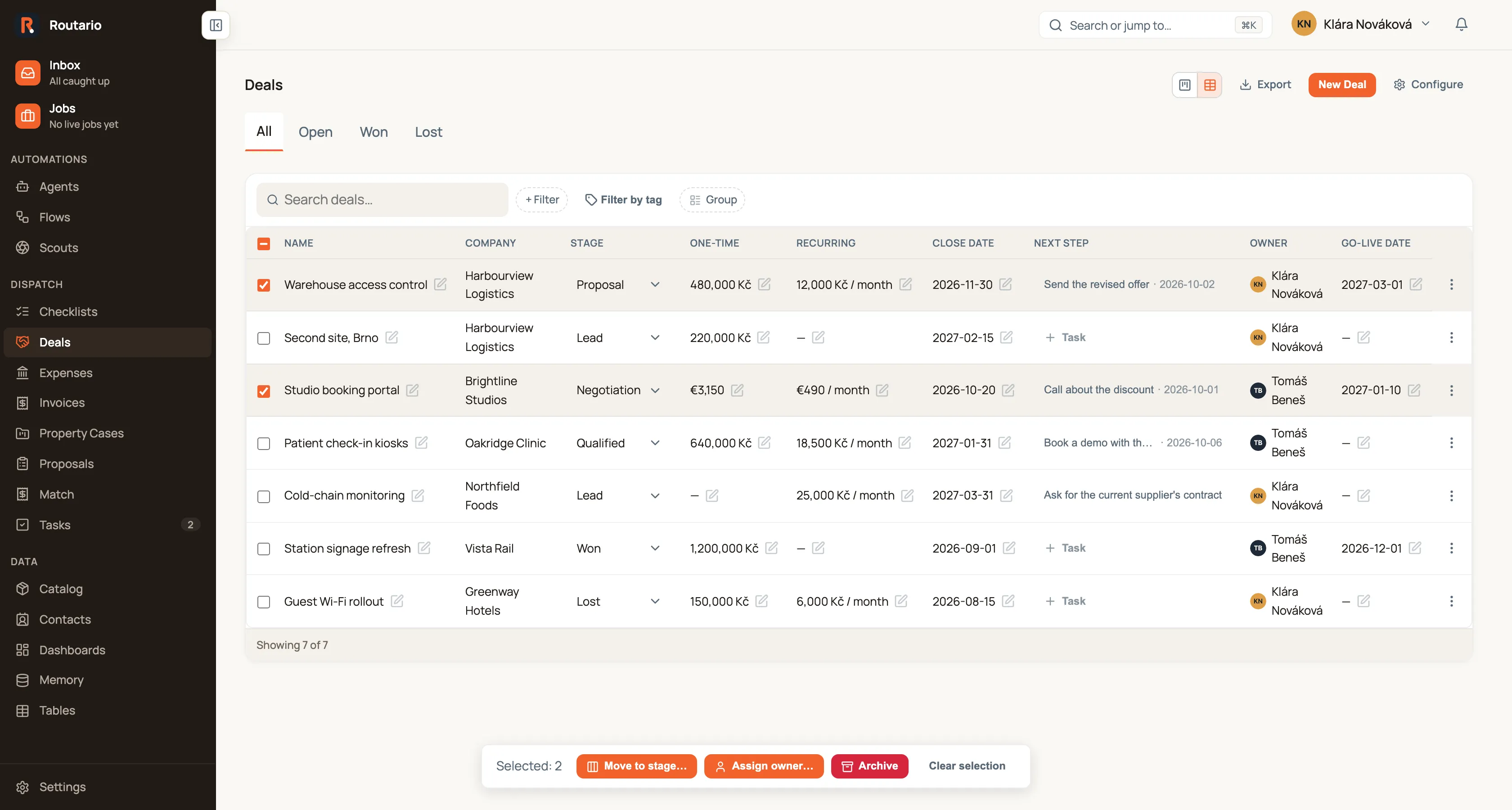
Tick the box at the start of each row you want, or the box in the header to tick every row currently shown. A bar appears at the bottom of the page:
- Move to stage… asks which stage, then moves every selected deal there. For a Lost stage it also asks for one lost reason for all of them.
- Assign owner… asks who, then makes them the owner of every selected deal.
- Archive removes the selected deals after you confirm. From five deals up, you type the number of deals to confirm, so a slip of the mouse can’t archive half your pipeline.
Each deal is changed exactly as if you had edited it by hand, so its history shows who changed what.
A worked example: the Monday pipeline review
Section titled “A worked example: the Monday pipeline review”It’s Monday and you want to tidy everything closing this quarter.
- Switch to the Table view and click the Open tab.
- + Filter → Close date, from 1 October to 31 December. Then Group → Owner.
- Under each person’s heading, sort by One-time to see the biggest deals first.
- Any deal showing No next step needs one. Click it and add one, for example Call about the budget, due Thursday. Then sort by In stage to find the deals that haven’t moved in a month.
- Two deals were signed last week: tick both, Move to stage… → Won.
- Tomáš is taking over the healthcare accounts: filter by Company, tick them, Assign owner… → Tomáš.
- Clear the Company filter, then Export → XLSX. The spreadsheet holds this quarter’s open deals, ready for the forecast meeting.
Bookmark the page before you leave. Next Monday it opens with the same filters and grouping.
Where to go next
Section titled “Where to go next”- Add your own fields to deals: track a go-live date, a man-day rate or a region on every deal.
- Attach a document to a deal or contact: keep the offer and the signed contract with the deal.
- Working with contacts: the people and companies your deals belong to.