

Building an automation
An automation is a trigger plus a sequence of steps. The trigger decides when the run starts; the steps do the work, in order, on the canvas.
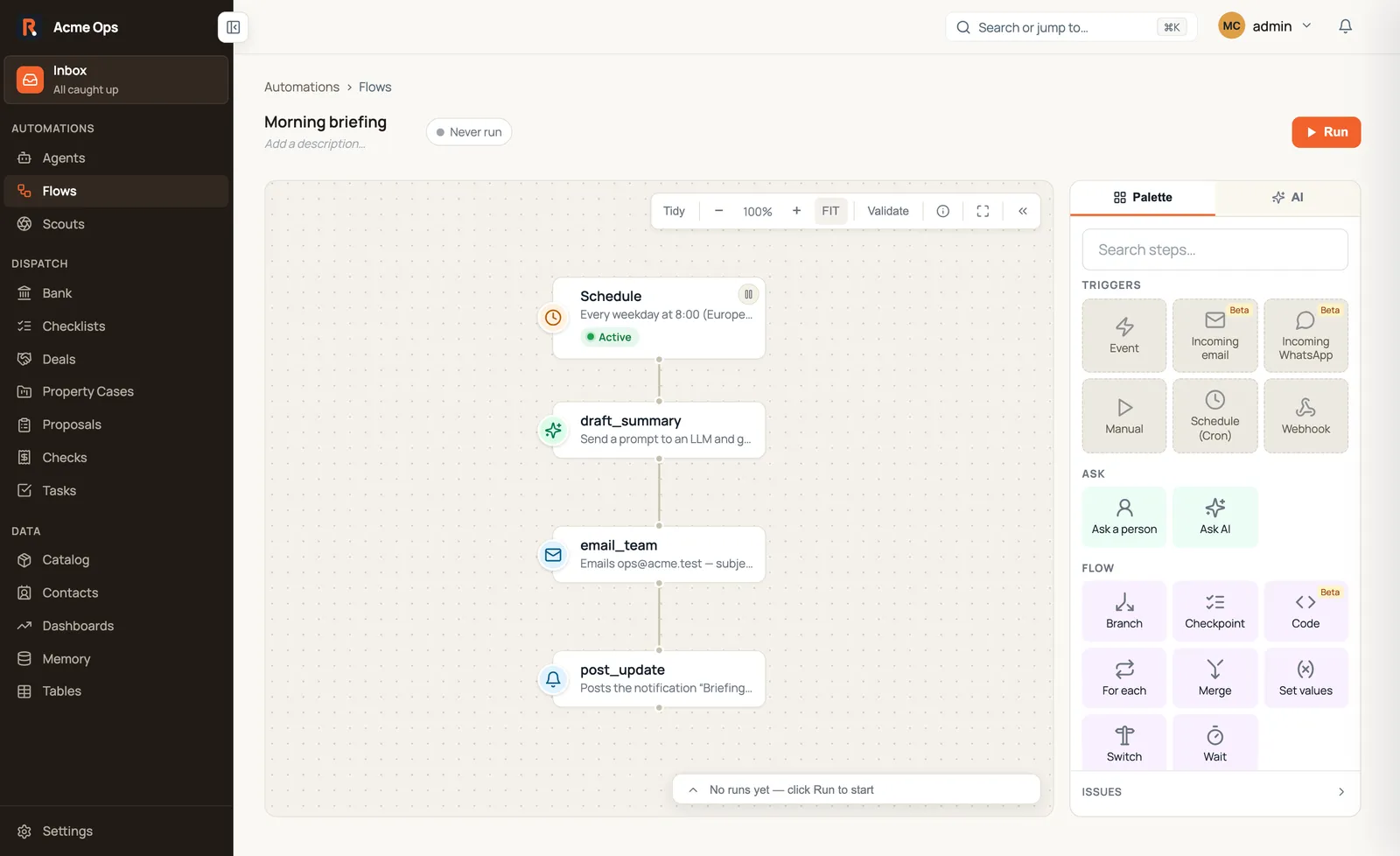
This one runs every weekday morning — a Schedule trigger drafts a summary with AI, emails the team, and posts a notification. No one has to remember to start it.
The anatomy of an automation
Section titled “The anatomy of an automation”Every automation has exactly one trigger at the top, followed by however many steps you need.
Triggers — how a run starts:
- Manual — someone presses Run. Good for on-demand tasks and testing.
- Schedule (Cron) — fires on a time pattern, like every weekday at 08:00.
- Webhook — an external system POSTs to a URL; Routario acknowledges the delivery right away and runs the flow just after — see What happens when a webhook arrives.
- Something lands in memory — a document, email or note arrives in memory. You say where it came from and which file types count (“PDFs from email”, “images a flow stored”), and anything else never starts a run. If the flow reads with an extraction recipe that has a first check (say, “claims anything from @bosch.cz, passes on credit notes”), a document the recipe passes on never starts a run either.
- Event — something else inside Routario happens (a payment arrives, a date is reached, a Scout sees something) and the automation reacts.
Steps — what happens after it starts. Steps run in order and can do work, make decisions, loop over lists, pause for a person, wait for time to pass, or send a message. See the full reference catalog for everything available.
Passing data between steps
Section titled “Passing data between steps”Each step can read the outputs of every step that ran before it, using {{ label.field }} template references. You write these directly into any step field — addresses, email bodies, conditions, anything.
A few always-available namespaces are also in scope throughout a run:
{{ user.firstName }},{{ user.email }}— the person who started the run{{ now.date }},{{ now.timestamp }}— the current moment{{ workspace.name }}— your workspace name
Inside a For each loop, {{ loop.item }} gives you the current element — so {{ loop.item.email }} pulls the email field off whatever record you’re iterating over.
See Template variables for the complete reference.
A worked example
Section titled “A worked example”Here is a realistic automation: find contacts who haven’t placed an order in 90 days, ask a manager to approve an outreach campaign, then email each one.
-
Schedule trigger. Add a Schedule (Cron) trigger set to run every Monday morning. No one has to remember to kick it off.
-
Find the records. Add a Find records step. Filter by last-order date older than 90 days. The step outputs a list; label it
silent_customers. -
Loop over the list. Wrap the next steps in a For each step over
{{ silent_customers }}. Inside the loop, each contact is available as{{ loop.item }}. -
Ask for approval. Inside the loop, add an Ask a person step. Assign it to the manager and set the response type to Yes / No. The run pauses here until they answer — more on that below.
-
Branch on the answer. Add a Branch step: if the manager said yes, continue; otherwise skip to the next loop iteration.
-
Send the email. Add a Send email step. Set
toto{{ loop.item.email }}and personalise the body with{{ loop.item.firstName }}and{{ user.firstName }}as the sender name.
Pausing for people and time
Section titled “Pausing for people and time”Some steps park the run and resume it later. Routario saves the full run state durably — a paused run holds no thread, survives a server restart, and picks up exactly where it left off.
Ask a person pauses until someone answers. How they’re reached — inline on the canvas, via a notification, email, and more — is configurable per step. The deep dive on channels and lifecycles is in Asking a person.
Wait pauses for a duration ("3d", "2h30m"), until a specific moment, or until an event fires. It resumes automatically; you don’t have to do anything.
Run states
Section titled “Run states”A run moves through these states:
- RUNNING — steps are executing.
- WAITING — the run is paused on an Ask or Wait step.
- COMPLETED — all steps finished successfully.
- FAILED — a step errored and the run could not continue.
You can see the current state, which step is active, and the full step-by-step history on the run detail page.
Where to go next
Section titled “Where to go next”- Chase unpaid invoices automatically — a concrete end-to-end example you can follow step by step.
- Template variables — everything you can reference with
{{ … }}. - Asking a person — channels, lifecycles, fire-and-continue, and more.
- Reference catalog — every trigger, step, and module, with full field documentation.