

Connected Storage
Most of the documents a business actually needs are already sitting somewhere: a supplier’s SFTP drop folder, a NAS on the office network, an S3 bucket a partner writes exports to. Connected Storage lets a flow or an agent reach into one of those servers directly — list what’s there, pull a specific file — without migrating anything. The files stay exactly where they are.
The five protocols
Section titled “The five protocols”| Protocol | Typical use | Notes |
|---|---|---|
| SFTP | Supplier drop folders, classic B2B file exchange | Password or private key; pins the server’s identity on first connect |
| WebDAV | Nextcloud, ownCloud, a NAS’s WebDAV endpoint | Paste the full DAV URL |
| FTP / FTPS | Legacy drop folders | Turn on TLS (FTPS) whenever the server supports it — plain FTP sends the password unencrypted |
| S3-compatible storage | AWS S3, MinIO, Cloudflare R2, Backblaze B2, Wasabi | Needs an access key + secret key; enable path-style addressing for self-hosted gateways |
| SMB shared drive | A Windows/Samba network share (the classic S:\ drive) | Self-hosted only today — a managed-SaaS container can’t reach your office network. Scout L0 Gate (coming soon) will bring this to managed SaaS too. |
All five are connected the same way: Settings → Connections → Apps → Files & Storage, pick the protocol, fill in the form, and Connect. Connecting always runs a real health check — it lists the base directory right there on the page, so a bad host or a typo’d path shows up immediately instead of on the first flow run.
Naming your connections
Section titled “Naming your connections”You’re not limited to one server per protocol. Every connection gets a name you choose (e.g. “Acme supplier SFTP”, “Backup NAS”) — useful the moment you have two SFTP servers, or a WebDAV share for each client. A flow step’s Storage connection field is a single dropdown listing every connection you’ve set up, across every protocol, by name — pick the one you mean. Leave it blank if you’ve only got one connection total and it’ll resolve automatically.
Connecting without a password
Section titled “Connecting without a password”FTP, WebDAV, and SMB all support connecting with no username or password at all — anonymous FTP drop folders, public WebDAV shares, and guest SMB shares (many NAS boxes, Synology included, offer a no-password “Guest” account) are real, common setups, not edge cases. Leave those fields blank and Routario connects without sending any credentials. A server that actually requires auth still fails with a clear “authentication failed” error — nothing is silently misconfigured.
S3-compatible storage is the one exception: it always needs an access key and secret key, since every request is cryptographically signed.
SFTP pins the server’s identity
Section titled “SFTP pins the server’s identity”The first time you connect an SFTP server, Routario records its host-key
fingerprint (shown on the connect page after a successful connection) — the
same trust-on-first-use model your terminal uses for ssh. If that
fingerprint ever changes on a later connection, Routario blocks it rather
than silently trusting a possibly-different server. Reconnect deliberately if
you know the change is legitimate (a server migration, a reinstalled host).
Using it in a flow
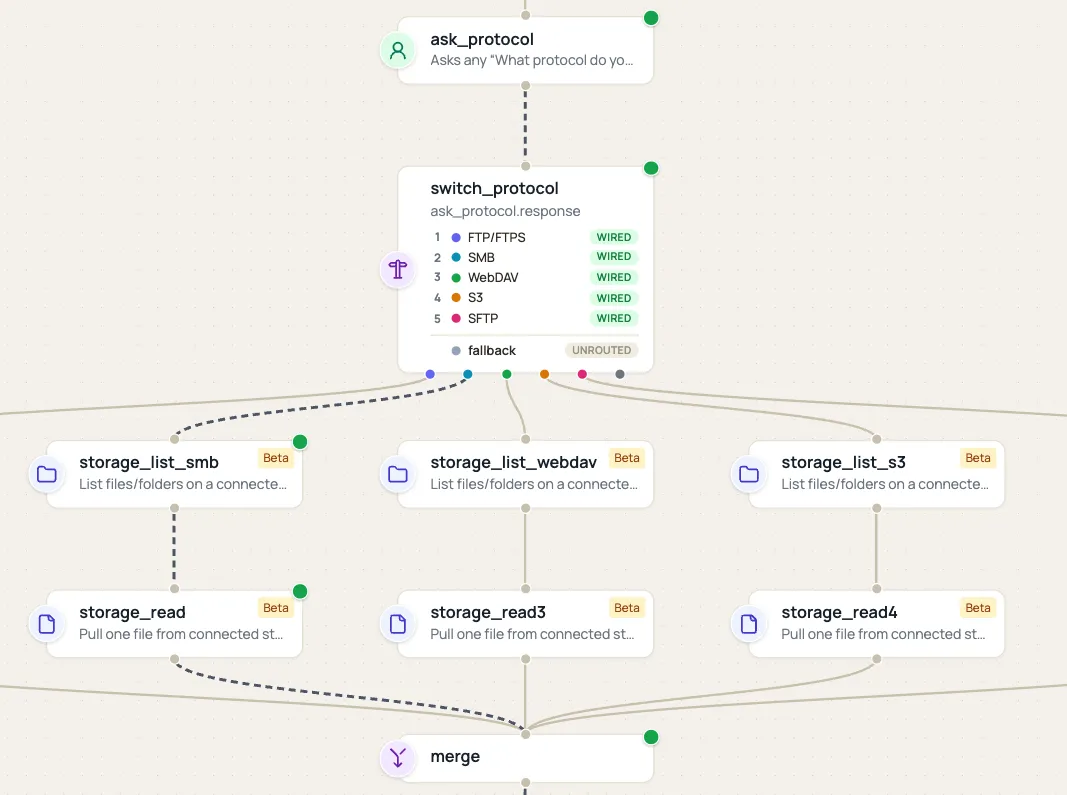
Section titled “Using it in a flow”Two steps do the work, and each does exactly one job:
- List files (storage) — browses a connection and returns names, paths,
sizes, and modified dates. Supports an optional glob filter (
*.pdf) and a recursive option for subfolders. - Read file (storage) — pulls one file’s bytes onto local disk given its
path(usually a path straight from List files). This is a pure fetch — it never saves anything to Memory. Chain a Document Store step afterward if you want the file to persist there; skip it and the file is only ever used transiently by whatever reads it next (Ask AI, a send step, another Extract).
Because every protocol produces the exact same shape, the same pair of steps works identically regardless of which one you’re reading from — a flow can even let the protocol be a runtime choice:
Where to go next
Section titled “Where to go next”- Preview a file before saving it to Memory — the full worked example: list, read, and show a file inline without ever creating a document.
- Read a value from whichever branch ran — the full worked example behind the screenshot above: one pop-up after the Switch, showing whichever protocol’s file was actually read.
- Template variables — how
{{ step.output }}references work, including the empty-list gotcha above. - Running & debugging a flow — what a
BLOCKEDrun means and how to read resolved inputs.