

See an automation's run history
An automation that works is invisible. That’s the point of it — but it means the question “did that actually happen?” comes up constantly. A supplier says they never got their reminder. A colleague asks whether the invoice checker has been running all week. Something finished, but you’re not sure it finished properly.
Every agent, every flow and every Job keeps a complete record of its own runs, and it’s always in the same place: a Runs view on the thing itself. And when you don’t yet know which thing to look at, the Runs page holds every run of every flow and agent in one list. Same columns, same filters, same export wherever you look — so once you can read one, you can read all of them.
Where to find it
Section titled “Where to find it”| You want to know about… | Go to |
|---|---|
| Everything at once | The Runs icon (a clock with an arrow) at the top right, next to the bell |
| One agent | Open the agent — the Runs tab is the first thing you land on |
| One flow | Open the flow’s canvas, then All runs → in the runs strip at the bottom |
| A whole Job | Open the Job — the Runs panel on Observe, then All runs → |
A Job’s view is the interesting one: a Job usually bundles several parts together, and its run history shows every part’s runs in one list — the flows and the agents, in the order they happened. It has one extra column, Part, telling you which of them each run came from.
Every run in one place: the Runs page
Section titled “Every run in one place: the Runs page”Runs — the clock icon at the top right, next to the bell — is the whole workspace’s run history — every flow and every agent, newest first. It’s where to start when the question is “what ran, and what broke?” and you don’t yet know whether the culprit was a flow or an agent. Like a Job’s history it has the Part column, naming the flow or agent each run came from, and it adds three things a list this big needs:
- Kind — a filter beside Status and Period that narrows to just flows or just agents.
- Search — type a word and press Enter. It searches every run, not just the ones on screen: a flow or agent’s name, an agent’s task, the step a flow last reported, and the error. “Refund” finds every agent run that was asked about a refund.
- Views — the tabs along the top: All, Flows, Agents and Failed, plus any filtered list you save for yourself with Save view.
The page also says how many runs match what you’ve set — “1,461 runs” — so a long history is never quietly cut short.
What a row tells you
Section titled “What a row tells you”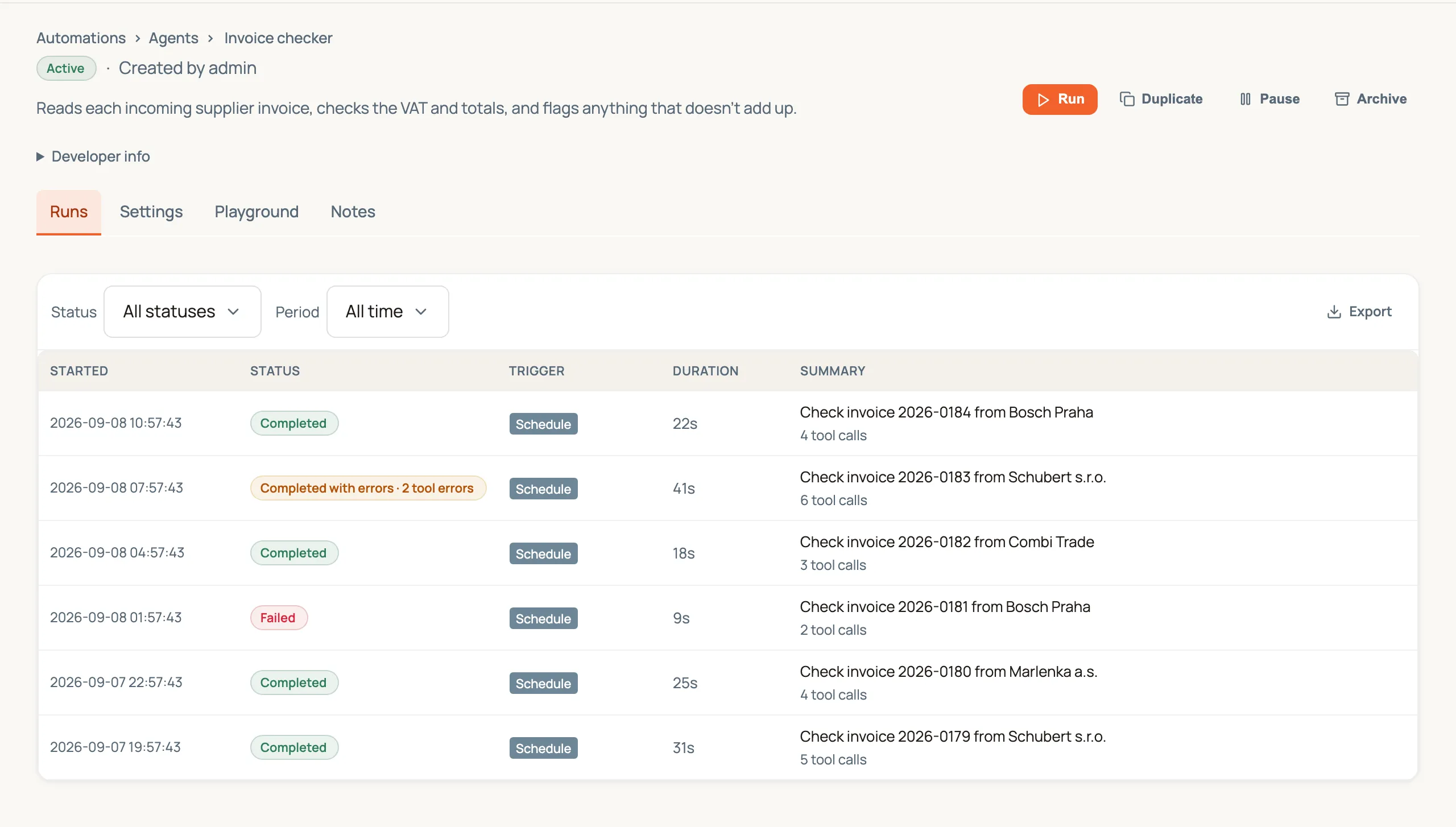
Five columns, and each answers a different question:
-
Started — when it began.
-
Status — how it finished (see below).
-
Trigger — why it ran: on a Schedule, by Email arriving, a Webhook, an Event, a person pressing Run (Manual), or as a step inside something bigger (Flow step, Parent flow).
-
Duration — how long it took. A run still going shows —, because its final time isn’t knowable yet.
-
Summary — what it was asked to do, or what it did. For an agent that’s the task it was given, with the number of tool calls underneath. For a flow it’s one line about what the run did:
- A step that pulls records says how many — a Zendesk poll reads “2 new · 14 fetched”, and the email, bank and shop syncs do the same.
- Otherwise it names the steps that acted — “Send reply · Tag ticket”.
- A run that decided there was nothing to do says where it stopped — “Ran 3 of 5 steps, ended at No new tickets”.
While a flow is still running you see the step it’s on; if it failed, the error.
Click any row to open that run in full — the step-by-step detail of what it did.
Reading the status
Section titled “Reading the status”There are four, and the middle one is the one worth understanding:
- Completed — it finished, and nothing went wrong.
- Completed with errors — it finished, but something broke along the way. This is the one people miss. The run produced an answer, so at a glance it looks fine, but a tool it tried failed. The badge names the count — “Completed with errors · 2 tool errors” — so you can see how much went wrong without opening it. One of these is usually a blip. The same one every day is a bug. A flow run also lands here when it got to the end without sending, writing or handing off anything — the reason starts with No outcome and names the step it stopped after. A flow that decides for itself there is nothing to do (a Branch taking its empty arm) is a plain Completed.
- Failed — it stopped and produced nothing.
- Waiting — it’s paused, usually on a person who hasn’t answered yet.
Narrow it down
Section titled “Narrow it down”Two filters sit above every Runs list (the Runs page adds Kind and a search, above):
- Status — show only failures, only the ones that finished with errors, and so on.
- Period — Today, 7, 30 or 90 days, or All time.
Period starts on All time, deliberately. A default window is how you end up looking at an empty list and concluding an automation has never run, when really it last ran six weeks ago. You’ll see everything, and you narrow when you want to.
Long histories load a page at a time — Load more at the bottom of the list fetches the next batch rather than making you wait for thousands of rows.
Get it out as a spreadsheet
Section titled “Get it out as a spreadsheet”Export in the top right downloads the list as CSV, Excel or JSON, and it respects the filters you’ve set — so “every failed run this quarter” is two clicks and a download.
The export carries a little more than the screen does: each row includes the run’s own ID and its raw status, which is what you want when you’re matching Routario’s record against another system’s.
What you won’t find here: Playground
Section titled “What you won’t find here: Playground”An agent’s Playground tab is a sandbox for trying the agent out in conversation. Nothing you do there appears in Runs, and that’s on purpose:
Sandbox conversation — no tools are called and nothing here is recorded as a run.
Playground talks to the agent’s brain with its hands tied. It won’t send an email, won’t write to a table, won’t touch a connected system — so there’s nothing to record. The Run button in the page header is the real thing: it calls the agent’s tools, it changes things, and it appears in Runs the moment it starts.
If you tried something in Playground and it isn’t in the run history, nothing is broken. It genuinely didn’t run.
A worked example
Section titled “A worked example”Your Invoice checker agent runs on a schedule every three hours. A colleague says one of last week’s invoices was never flagged, and they think the agent is broken.
Open the agent. The Runs tab shows it has been running all week, so it isn’t dead. You set Status → Completed with errors and get a single row: Tuesday morning, “Check invoice 2026-0183 from Schubert s.r.o.”, 2 tool errors, 41 seconds. Clicking it shows the supplier lookup timed out twice, so the agent finished its check without the supplier’s payment terms.
Nothing was “broken” — the agent ran, and finished, and looked green from the outside. The run history is the only place that would have told you otherwise.
Where to go next
Section titled “Where to go next”- Tell at a glance whether a Job is healthy — the same outcomes summarised per day on the Jobs board.
- Running & debugging a flow — once you’ve found the run, how to read its step log and work out what went wrong.
- Keeping your automations healthy — how Routario spots the slow leaks in this history for you, and tells you when a run goes wrong.
- See what happened — the Logs page — the workspace-wide, admin-only record, for when the question spans more than one automation.
- Set how long run details are kept — how far back this history goes.