

Numbering your invoices
The goal: your invoice numbers are a legal record, so they have to be right the first time. Routario numbers invoices for you as you issue them — and when you arrive partway through a year from another system, it can continue your existing run instead of starting again at 1.
This page is about the invoices you raise in Routario, on the Invoices page. If you issue invoices through Fakturoid or iDoklad instead, those systems do their own numbering — see Issue invoices with Fakturoid or iDoklad.
How numbering works out of the box
Section titled “How numbering works out of the box”A draft has no number. You can add lines, change the customer, fix a price, or delete the draft entirely, and nothing has been used up. The number is assigned at the moment you press Issue — because that is the moment the document becomes real.
From then on:
- Numbers run without gaps, in order, within a year. The first invoice you
issue in 2026 is
2026-0001, the next2026-0002, and so on. - A new year starts over. The first invoice you issue in 2027 is
2027-0001. - Voiding an invoice does not free its number. A void keeps the number and the document stays visible, marked Void. That’s deliberate: an accountant can see that number 7 was cancelled. A number that simply vanished from the run is much harder to explain.
- Numbers already assigned never change, whatever you change afterwards.
Choosing the format
Section titled “Choosing the format”Open Invoices and click the gear icon to reach Invoice settings. Under Numbering you can pick how numbers are written:
| Format | Looks like | Why you’d pick it |
|---|---|---|
| Dashed (default) | 2026-0001 | Easy to read; the year is obvious at a glance. |
| Compact | 20260001 | The invoice number and the variable symbol become the same string — one less number for your customer’s accounts department to mistype. |
Changing the format only affects invoices issued from then on. Anything already issued keeps the number it was given.
Where the numbering stands shows you, for each year, how many numbers have been used and exactly what the next invoice will be called.
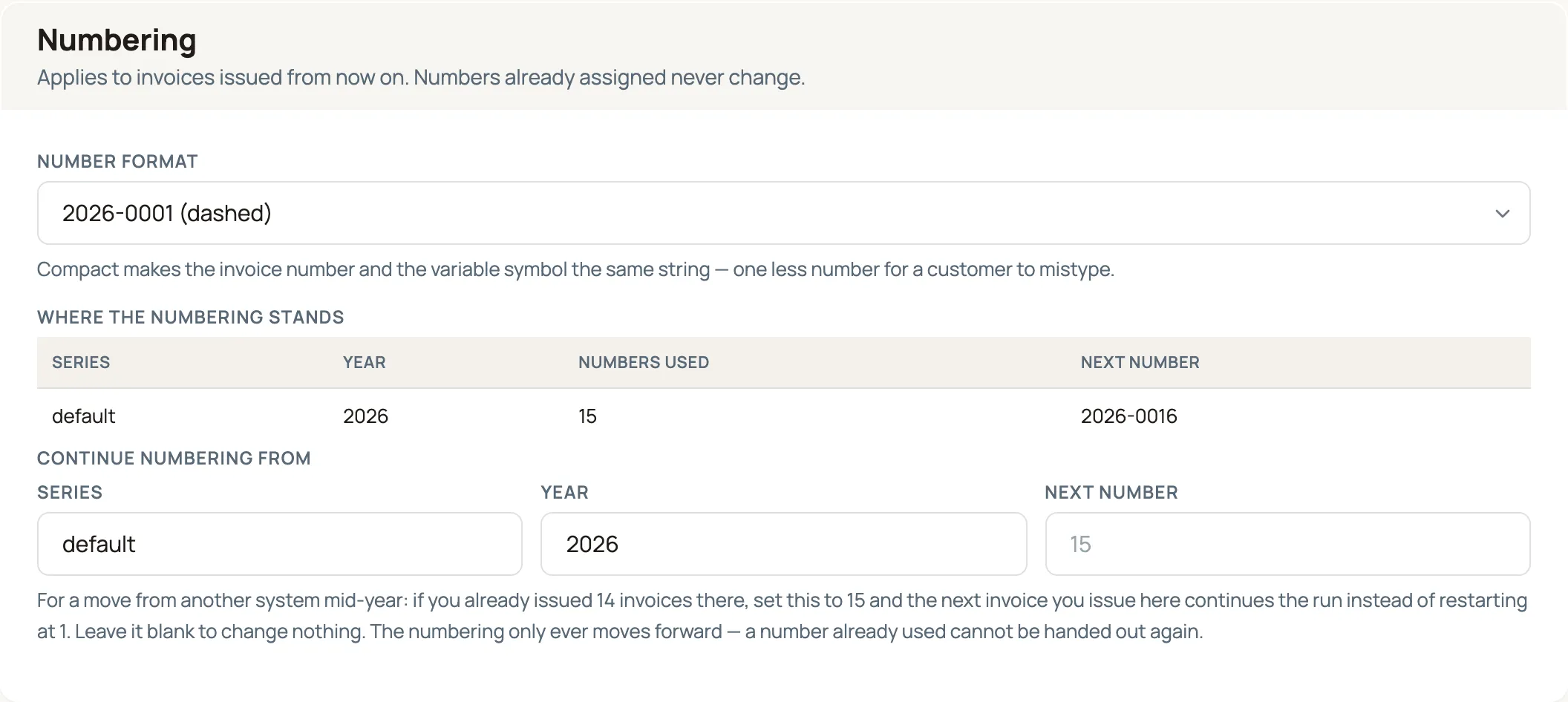
Moving from another system partway through the year
Section titled “Moving from another system partway through the year”This is the case Routario is built to absorb. Say you issued 14 invoices this
year in your old system and you’re switching over in June. Your next invoice
must be number 15 — if Routario started at 1, you’d hand your accountant a
second invoice 2026-0001 and a duplicate in the books.
In Invoice settings → Numbering, fill in Continue numbering from:
- Series — leave it as
default. - Year — the year you’re continuing, e.g.
2026. - Next number —
15.
Save. Where the numbering stands now reads 2026-0015 as the next number,
and the first invoice you issue in Routario continues your run.
A few things worth knowing before you use it:
- Blank means “change nothing.” The field starts empty every time you open the page, so saving other settings can never quietly reset your numbering.
- It only ever moves forward. You can jump ahead; you cannot wind the numbering back. Every number at or below the current point has either been used or deliberately skipped, and handing one out twice is exactly the mistake this is meant to prevent.
- It refuses to create a clash. If any invoice already carries the number you’re aiming at — or a higher one in the same year — the save is rejected and tells you which invoice is in the way. The numbering will eventually count up through that number, so the clash is caught now rather than in the middle of issuing something unrelated weeks later.
Setting one invoice’s number and variable symbol yourself
Section titled “Setting one invoice’s number and variable symbol yourself”Sometimes a single document needs to say something specific. Two common reasons:
- The invoice already exists on paper, issued from your old system, and you want it in Routario under the number your customer already has.
- Your customer is already paying against a variable symbol minted somewhere else, and changing it now would break their payment.
Open the draft and click Set them yourself next to the Number and Var. symbol fields. It takes you to Set the number and variable symbol yourself, below the Issue button. Expand it if it’s closed.

- Number — what the document will be called. Whatever you type is used exactly as typed when you issue it.
- Var. symbol — up to 10 digits. Leave it blank and Routario derives it from
the number at issue, which is the normal behaviour (
2026-0015becomes20260015).
Press Save number and symbol, then issue the invoice as usual. Both values survive untouched.
What happens to the rest of your numbering
Section titled “What happens to the rest of your numbering”A number you set by hand is taken out of circulation. If you give a draft
2026-0015 while your run is only up to 8, the numbering jumps ahead so that no
invoice you issue later can ever be handed the same number. That’s the whole
point: a clash discovered while you’re issuing a different invoice is the worst
possible time to find out.
Filling a gap works the other way round. If you’ve continued your run at 15
and you’re now re-entering paper invoice 9, setting 2026-0009 changes nothing
about the run — your next automatic number is still 15.
A number in your old system’s format is kept exactly as written. Something
like FA2025/014 is printed on the document verbatim and simply sits outside the
counted run, because there’s no honest way to say where such a number belongs in
the sequence.
To go back to automatic numbering on a draft, clear the field and save. (A draft holding a number can’t be deleted until you clear it — otherwise the number would be stranded, neither used nor available.)
What you can’t do, and why
Section titled “What you can’t do, and why”| You want to… | What to do instead |
|---|---|
| Change the number on an invoice you’ve already issued | Use Reopen for correction on the issued invoice. It goes back to draft keeping its number, so you can fix the lines and re-issue the same document rather than burning a new number. |
| Re-use the number of a voided invoice | You can’t — a void keeps its number permanently. Issue the next number in the run. |
| Wind the numbering back to a lower number | Not possible by design. If you’ve jumped too far ahead, the numbers in between stay unused. |
| Set a number on an invoice that’s been issued before | Not possible — it already went out to a customer under that number. |
Where to go next
Section titled “Where to go next”- Draft and issue an invoice — build the invoice itself: lines, units, currency, the PDF preview and issuing.
- Chase unpaid invoices — put a reminder behind the invoices that are still owed.
- Connect your bank accounts (Fio) — incoming payments match against the variable symbol, which is why getting it right matters.
- Issue invoices with Fakturoid or iDoklad — issuing through an external invoicing system instead, from a flow.