

Anatomy of a flow
A flow is a trigger plus a sequence of steps. The trigger decides when a run starts; the steps do the work, in order. Together they form the flow.
The canvas: where you build and run
Section titled “The canvas: where you build and run”The canvas is the single surface where you both design a flow and watch it run. There is no separate “editor” and “viewer” — opening a flow always lands you on the canvas.
Build mode
Section titled “Build mode”In build mode you:
- Add, connect, and configure steps from the palette.
- Use the zoom controls (or scroll to zoom, drag to pan) to navigate; press Tidy to auto-arrange nodes top-to-bottom when the layout gets cluttered.
- Press Run to start the flow by hand at any time — even if the flow has a cron or webhook trigger.
Review mode
Section titled “Review mode”When you open a past run, the canvas switches to review mode (a banner signals the switch). In review mode:
- Every node shows a status pip — completed, failed, waiting — from that specific run.
- Editing is off: you can’t drag nodes, add steps, or draw connections while inspecting a run.
- Panning and zooming still work, so you can read a large flow.
- An Exit view button returns you to build mode.
What a trigger is
Section titled “What a trigger is”Every flow has exactly one trigger. It decides how a run starts:
| Trigger | When a run starts |
|---|---|
| Manual | Someone presses Run |
| Schedule (Cron) | A cron expression fires on a time pattern |
| Webhook | An external system POSTs to the flow’s URL |
| Something lands in memory | A document, email or note arrives in memory, from where you say, of the file types you say |
| Event | Something else inside Routario happens (a payment arrives, a date is reached) |
A flow with a cron, webhook, or event trigger can also be run by hand at any time — see Running & debugging a flow.
For the Webhook trigger specifically, the POST is acknowledged before the flow runs — see What happens when a webhook arrives.
What steps are
Section titled “What steps are”Steps are the nodes on the canvas. They run in order and can do work, make decisions, loop over lists, pause for a person, wait for time to pass, or send a message — see the reference catalog for the full list, and Routing for the control-flow nodes.
Every step can read the outputs of earlier steps with {{ label.field }}
references, plus a few always-available namespaces — see
Template variables.
How flows connect to each other
Section titled “How flows connect to each other”A flow can call another flow. A Run flow step invokes a target flow as a sub-routine: the child runs and its outputs become available in the parent under the step’s label. This is the reuse primitive — if a sequence is shared by several flows, pull it into its own flow and call it.
A flow can start from a platform event. An Event trigger fires when Routario dispatches a named internal event; the event’s payload keys are injected into the run context. The flow runs shortly after the event, not inside it: Routario queues the event once whatever caused it is saved, and starts the flow on its own a moment later. So a slow flow — an agent drafting a reply, say — never holds up the step, page or flow that fired the event, and a restart in between does not lose the run.
About agents: flows can call agents (a step hands work to an agent), but an agent does not itself start a named flow — there’s no “agent-initiated” trigger kind today. A flow that should be kicked off by an agent uses a webhook or an event the agent emits.
Leaving notes for other people
Section titled “Leaving notes for other people”Long flows get hard to read at a glance — someone opening a flow they didn’t build has no way to tell what a step is for without digging into its configuration. A note is a short comment pinned to one step, visible to anyone who opens the flow.
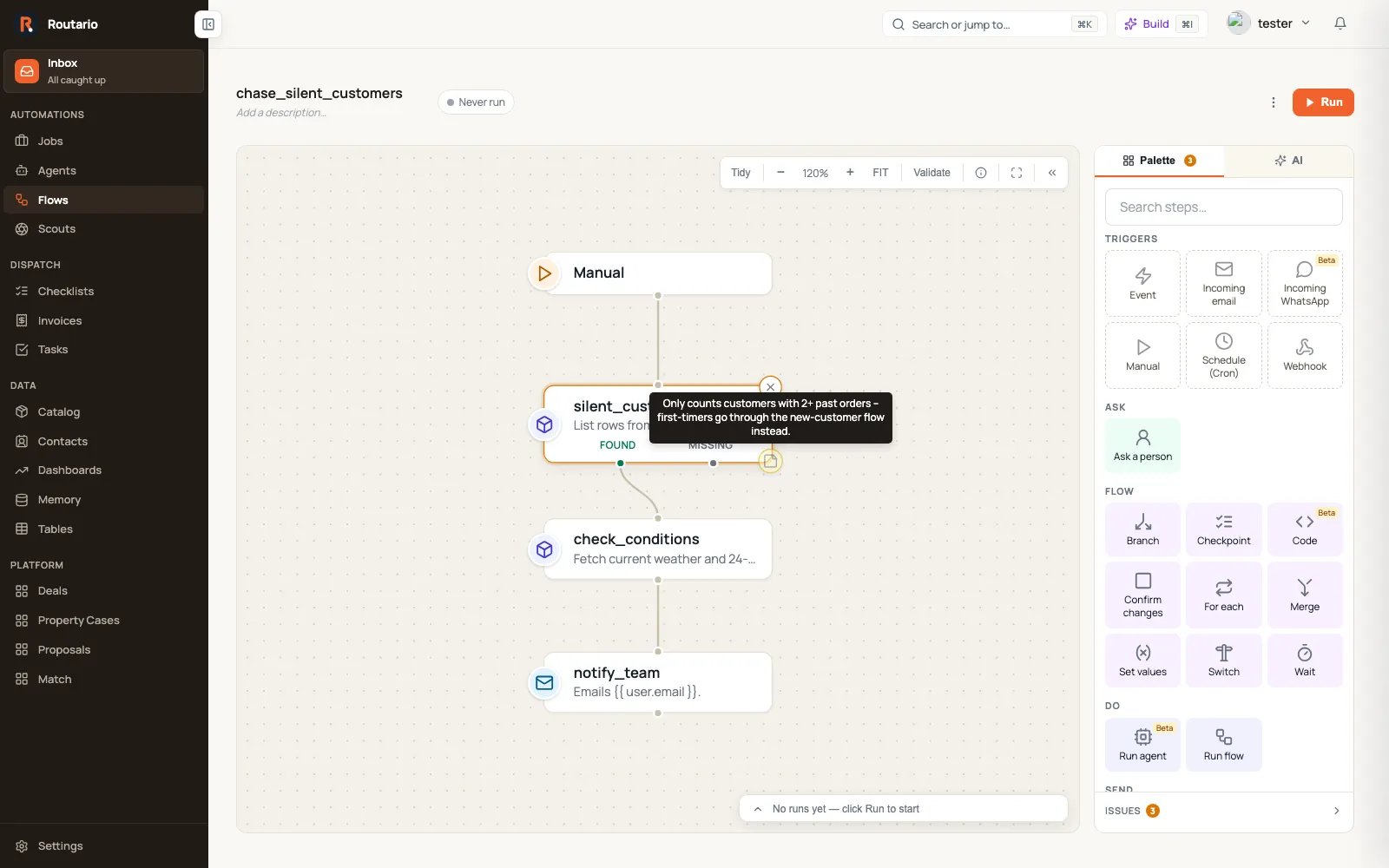
- Hover a step and a small note icon fades in at its bottom-right corner. Click it to open a text box and type your note. It saves when you click Save, press Esc, or click elsewhere — there’s no separate step required. Clear removes the note.
- Once a step has a note, the icon turns solid and stays visible without hovering, so scanning a long flow shows you at a glance which steps have context attached.
- Hovering a solid note icon shows the note’s text right in the tooltip — you don’t need to click in just to read it.
- Opening a step’s detail panel also shows its note, read-only, near the top. The canvas icon is the only place you can edit it.
Notes are for whoever is building or maintaining the flow. The on-canvas icon disappears while you’re reviewing a past run (review mode is read-only), but a note’s text still shows, read-only, if you open that step’s detail panel.