

⌘K: what it finds and who sees what
You know the thing exists — the supplier, the board Monday’s meeting uses, the rule that says you don’t ship to Israel — but not where it lives. ⌘K (Ctrl+K on Windows), or Search or jump to… at the top of any page, finds it from anywhere. You don’t have to remember which table, page or document holds it.
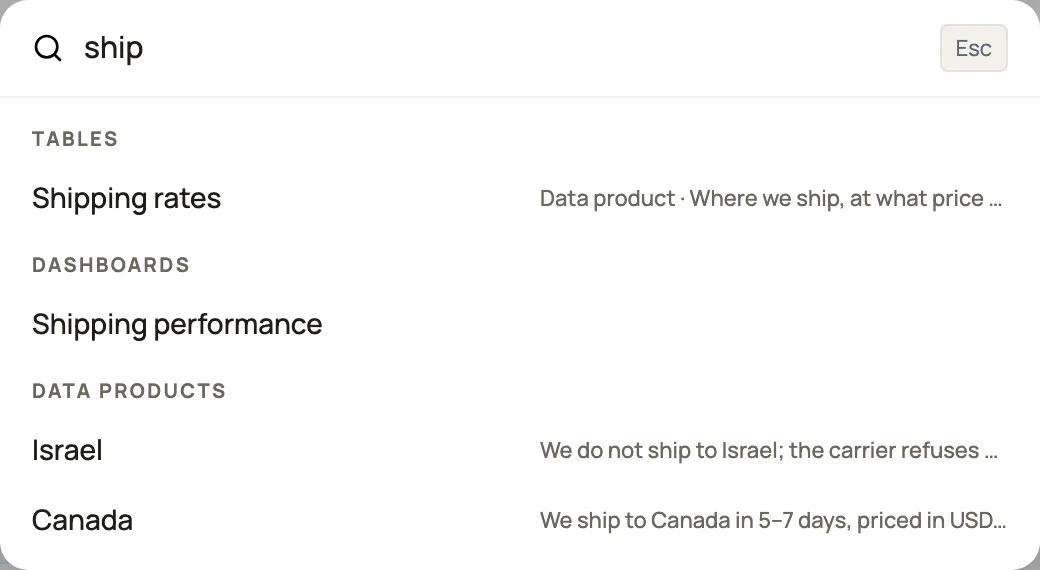
Search
Section titled “Search”- Press ⌘K. Before you type, the palette shows Actions (start a new flow, dashboard, contact…), Recent (what you opened last) and Pages.
- Type at least two letters. The pages narrow as you type, and results from your own data follow a moment later, in groups.
- Move with ↑ and ↓, open with Enter, close with Esc.
Each thing comes back once, however many places know it: a supplier that is a company in Contacts and a card in Memory is one result, opening its real record. Memory explains the marks beside it.
What each group finds
Section titled “What each group finds”| Group | Finds | Opens |
|---|---|---|
| Contacts | People, by name, email, phone or employer | The person |
| Companies | Companies, by name | The company |
| Deals | Deals, by their name, their company’s or anyone’s on them | The deal |
| Cards | Things Memory knows, by name or alias | The card, or its record in Contacts or Deals |
| Memory | Notes, facts and summaries on contacts, companies and deals, by their text | The record they are on |
| Mentioned | Names Memory noticed in documents that aren’t cards yet | The documents that mention the name |
| Documents | Documents, by file name and by the text read from them | The document |
| Automations | Flows, by name (archived ones are left out) | The flow |
| Tables | Tables, by name or description; a data product says so | The table |
| Dashboards | Boards, by title, with how many tiles each has | The board |
| Data products | Rows of data products, by the text in their columns | The row |
| Tags | Tags, by name (the # is optional) | Everything carrying the tag |
| Proposals | Requests for proposals, by title | The request |
A group with nothing to show is left out, so the palette only ever lists what matched.
Capitals don’t matter. Accents depend on the group:
- Contacts, Companies, Cards, Memory, Documents, Automations and Proposals ignore accents, and match the start of a word: novak and nov both find Novák, but vák does not.
- Tables and Dashboards ignore accents and match any part of the name: ucty finds Účty 2026.
- Deals, Tags, Mentioned and Data products match any part of the text, and the accents count — the same way a table’s own search box works. Type the word as it is written: Novák, not novak.
Find the answer, not just the table
Section titled “Find the answer, not just the table”A table is found by its name. Only a data product — a table that says what it answers, who owns it and how far to trust each row — is also searched row by row, because its rows are answers meant to be looked up.
Say a customer asks whether you ship to Israel. Your Shipping rates data product has the row. Type israel:
| Data products | |
|---|---|
| Israel | Shipping rates · High trust |
| SR-014 | …we ship everywhere except Israel and Kazakhstan… · Shipping rates · Low trust |
Each row is titled the way its own page titles it — by its first text column. When that title doesn’t contain your word, the row first quotes the text around the match, so a row titled by a code still shows why it came back. Then come the table’s name and the row’s trust: High trust, Low trust or Expired, the same levels an agent sees. The palette is narrow, so behind a long quote the table and trust are often cut off; Enter opens the row, whose page shows both, and where you can check or correct it.
To make a table’s rows findable this way, turn it into a data product: Data → Tables → (your table) → Columns → Data product.
Why a teammate sees fewer groups
Section titled “Why a teammate sees fewer groups”The palette never offers a link to a page you couldn’t open, so two people can type the same word and see different groups.
- Your workspace. An area that isn’t part of your workspace — Memory, Contacts or Dashboards switched off for it, or Deals or Proposals not turned on — has no group.
- Your access. When an administrator limits what you can open in Settings → Access, search follows the same rules as the pages: without access to Memory there is no Memory, Cards or Mentioned group; without access to Tables, no Tables or Data products; Deals and Proposals likewise. Administrators see every group their workspace has. See Access: who can do what.
- Each data product, on its own. A row shows only if you may read its table. The rows of a data product you may not read never appear in your results, even when the words match. It is the same per-table rule agents follow — see who can read a data product.
- Projects. A note or document filed to a project shows only for that project’s members and administrators.
Where to go next
Section titled “Where to go next”- Data products: tables your agents can ask — turn a table into one, and choose how its rows earn trust.
- Memory — the marks beside a search result, and one result per thing.
- Give a teammate or agent the right access — what someone can open, and so what they can find.