

Draft and issue an invoice
An invoice starts as a draft. You can change anything on a draft, as often as you like, and nothing about it is final: no number is used up and nothing reaches your books. When it’s right, you issue it. Issuing gives the invoice its number and locks it, so the document your customer has is the one Routario keeps.
This guide covers invoices you build in Routario itself, under Invoices. If you issue invoices from Fakturoid or iDoklad instead, see Issue invoices (Fakturoid / iDoklad).
Start a draft
Section titled “Start a draft”Open Invoices and click + New invoice. Pick the Customer from your companies, the Currency and, if you already know it, the Due date. Then click Create draft.
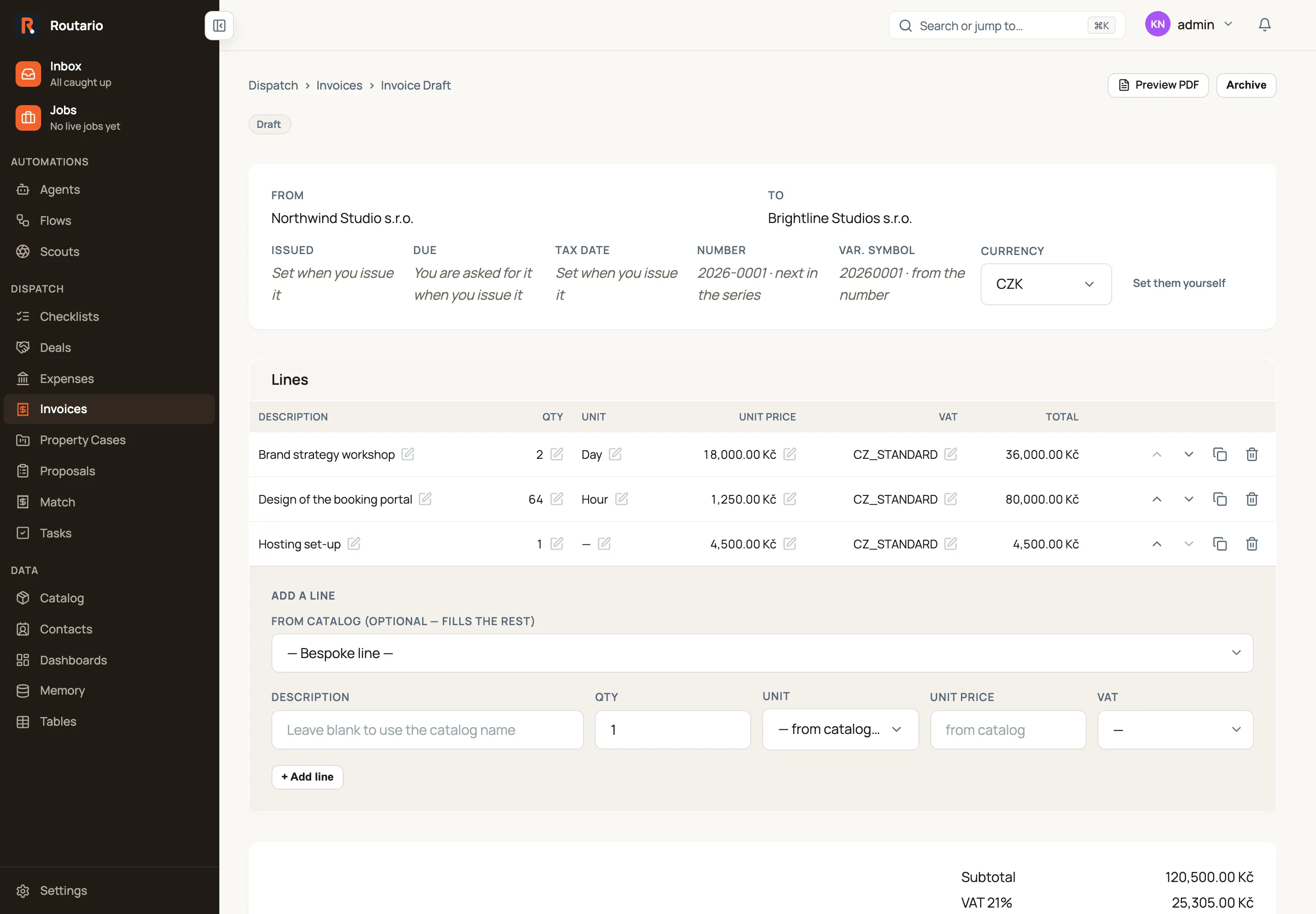
The draft opens straight away. At the top it shows who the invoice is From (your workspace’s company) and To (the customer).
Start from a previous invoice
Section titled “Start from a previous invoice”Most invoices to a regular customer are last month’s invoice with new dates and maybe a new amount. You don’t need to type it in again. In the Invoices list, click ⋮ at the end of the invoice you want to repeat, then Duplicate. Routario creates a new draft and opens it, with the message Copied to a new draft — check the dates and the amount.
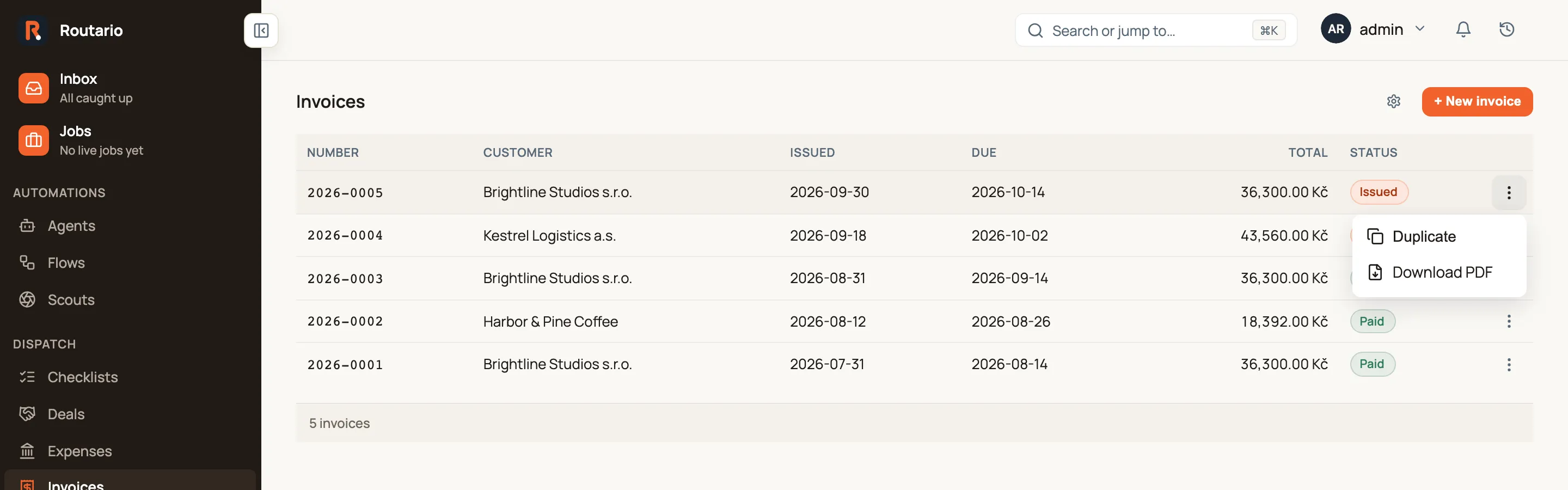
What the copy keeps: the customer, currency, numbering series, document language, notes, payment details (constant symbol and payment method), and every line with its description, quantity, unit, price and VAT rate. Prices are copied as they were on the original, so a price change in your catalog since then doesn’t change the copy. Lines you removed from the original are not copied.
What it doesn’t keep:
- Number, variable symbol and issue date. The copy is a new draft, so it gets its number only when you issue it. Duplicating never uses up a number.
- Tax date. It’s set when you issue the copy.
- Service periods on lines. They would describe the original’s period, not the new one. Put the new period in the line’s description if your customer needs to see it.
The due date moves with it. The copy gets the same payment terms as the original, counted from today. If the original was due 14 days after it was issued, the copy is due 14 days from today. When the original was never issued, the copy uses Payment terms (days) from Invoice settings. If that’s empty too, the copy has no due date and you’re asked for one when you issue it.
VAT follows your registration today. Whether the copy charges VAT depends on whether your company has a VAT number in Settings → Company now, not on what the original showed. So if you’ve registered for VAT since the original went out, the copy charges it. Reverse charge does carry over, because it depends on the customer.
You can duplicate any invoice: a draft, an issued or paid one, or a voided one. Duplicating a voided invoice is a quick way to redo it correctly. The copy’s History shows Copied from and the original’s number, so you can always tell where it came from.
Example: a monthly retainer
Section titled “Example: a monthly retainer”Northwind Studio bills Brightline Studios 30,000 Kč plus VAT each month. The August invoice, 2026-0003, was issued on 31 August and due 14 days later.
- On 30 September, open Invoices, click ⋮ on 2026-0003 and choose Duplicate.
- The new draft is already addressed to Brightline Studios in CZK, with the retainer line at 30,000 Kč and standard VAT. Its due date is 14 October, 14 days from today.
- Click the pencil beside the description and change Monthly design retainer — August to — September.
- Click Issue invoice. It becomes 2026-0005.
Add lines
Section titled “Add lines”The Add a line band sits under the lines. You can fill it in two ways:
- From your catalog. Pick an item under From catalog (optional — fills the rest). Routario fills in its name, unit, price in the invoice’s currency and VAT rate. You only need to set the quantity. If you type a description, it replaces the catalog name on this line only.
- A bespoke line. Leave the picker on — Bespoke line — and type the description, quantity, unit price and VAT rate yourself.
Choose the Unit from the dropdown, for example hours, days or pieces. The list comes from Settings → Units of Measure, so every invoice uses the same units. A line can also have no unit.
Click + Add line. Every amount on the invoice shows its currency, including the VAT rows and the totals.
Change lines in place
Section titled “Change lines in place”On a draft, every value on a line has a pencil beside it: the description, quantity, unit, unit price and VAT rate. Click it, change the value and save. The line total and the invoice totals update immediately. Quantities and prices can’t be negative.
The buttons at the end of each line are:
- Move up and Move down change the line’s position. The PDF lists the lines in the same order.
- Duplicate line puts a copy directly beneath the original. Use it for a second line that differs only in its date or quantity.
- Remove deletes the line from the draft.
Change the currency
Section titled “Change the currency”A draft’s Currency picker is in the facts row. You can change it at any time before you issue the invoice.
What a draft is waiting for
Section titled “What a draft is waiting for”Some facts are decided when you issue the invoice. A draft shows what each one is waiting for, in grey italics:
| Fact | On a draft |
|---|---|
| Issued and Tax date | Set when you issue it |
| Due | You are asked for it when you issue it (unless you set one when creating the draft, or the draft is a copy that carried its terms over) |
| Number | The number it will get, for example 2026-0001 · next in the series |
| Var. symbol | The payment reference it will get, for example 20260001 · from the number |
The number shown is a preview. It isn’t reserved, so if you issue another invoice first, this one gets the next number when you issue it.
Set the number and variable symbol yourself
Section titled “Set the number and variable symbol yourself”Sometimes an invoice already has a number, for example a paper invoice you’re entering after the fact, or your customer already pays against a particular variable symbol. Click Set them yourself to jump to Set the number and variable symbol yourself, expand it, fill in either field and click Save number and symbol. Both are kept exactly as you typed them when the invoice is issued. Numbering your invoices explains how this fits with the numbering series.
Preview the PDF
Section titled “Preview the PDF”Click Preview PDF to open the invoice in a new tab, so you don’t lose your place in the draft. A draft’s PDF has a large DRAFT watermark. It shows the number and variable symbol it will get, in a lighter colour and marked provisional. The issue date reads at issue. The payment QR code carries no variable symbol until the invoice is issued, so nobody can pay against a number that isn’t final yet.
Issue the invoice
Section titled “Issue the invoice”When the draft is right, fill in the Issue date (today by default) and the Due date in the issue form, then click Issue invoice. Routario asks you to confirm: Issue this invoice? It gets a number and is locked.
Issuing:
- gives the invoice its number and variable symbol (or keeps the ones you set yourself),
- records who it’s from and to as they are at that moment, so a later change to a company’s address doesn’t rewrite an invoice already sent,
- adds the amount to what your customer owes you,
- locks the lines. An issued invoice’s lines can be read but not edited.
An invoice needs at least one line before you can issue it.
The issued PDF has no watermark and carries the final number, dates and a payment QR code. Use Download PDF to save a copy.
After you issue
Section titled “After you issue”- Record a payment. Enter the Amount, the Date and, optionally, a Reference, then click Record payment. The invoice changes to partially paid or paid. To have customers reminded about overdue invoices automatically, see Chase unpaid invoices.
- Reopen for correction. If you spot a mistake before any payment arrives, give a Reason and click Reopen for correction. The invoice goes back to a draft and keeps its number, so you can correct it and issue it again without using up a new number.
- Void invoice. To cancel an invoice, give a Reason and confirm. The number stays used, so there’s no gap to explain later. You can’t void an invoice that already has payments recorded.
A draft you no longer need isn’t voided. Use Archive at the top of the page instead.
Example: invoicing a design project
Section titled “Example: invoicing a design project”Northwind Studio has finished a first phase of work for Brightline Studios.
- Under Invoices, click + New invoice, choose Brightline Studios s.r.o. and CZK, then click Create draft.
- Add Brand strategy workshop, 2 × Day at 18,000 Kč; Design of the booking portal, 64 × Hour at 1,250 Kč; and Hosting set-up, 1 at 4,500 Kč, all at standard VAT.
- The workshop actually ran for three days, so click the pencil beside its quantity and change 2 to 3. The totals update.
- Brightline wants the hosting listed first. Click Move up twice on Hosting set-up.
- Click Preview PDF, check the draft in the new tab, and go back to the draft.
- Set the due date 14 days out and click Issue invoice. The invoice becomes 2026-0001 with variable symbol 20260001, and the PDF is ready to send.
Where to go next
Section titled “Where to go next”- Numbering your invoices: choose a number format and continue your numbering from another system.
- Chase unpaid invoices: email customers a reminder when an invoice goes overdue.
- Issue invoices (Fakturoid / iDoklad): if your invoices live in an accounting tool instead.