

Set up and activate an installed Job
You’ve installed a Job from the catalog. It’s a draft: it won’t do anything until you tell it the handful of things it needs — which mailbox to watch, who approves, which table holds your rules — and turn it on.
Guided setup is that walkthrough. It’s one page that steps through every outstanding requirement and ends in a single deliberate action: Activate. You can’t wire it wrong and switch it on by mistake — Routario checks that everything essential is in place before it lets you activate.
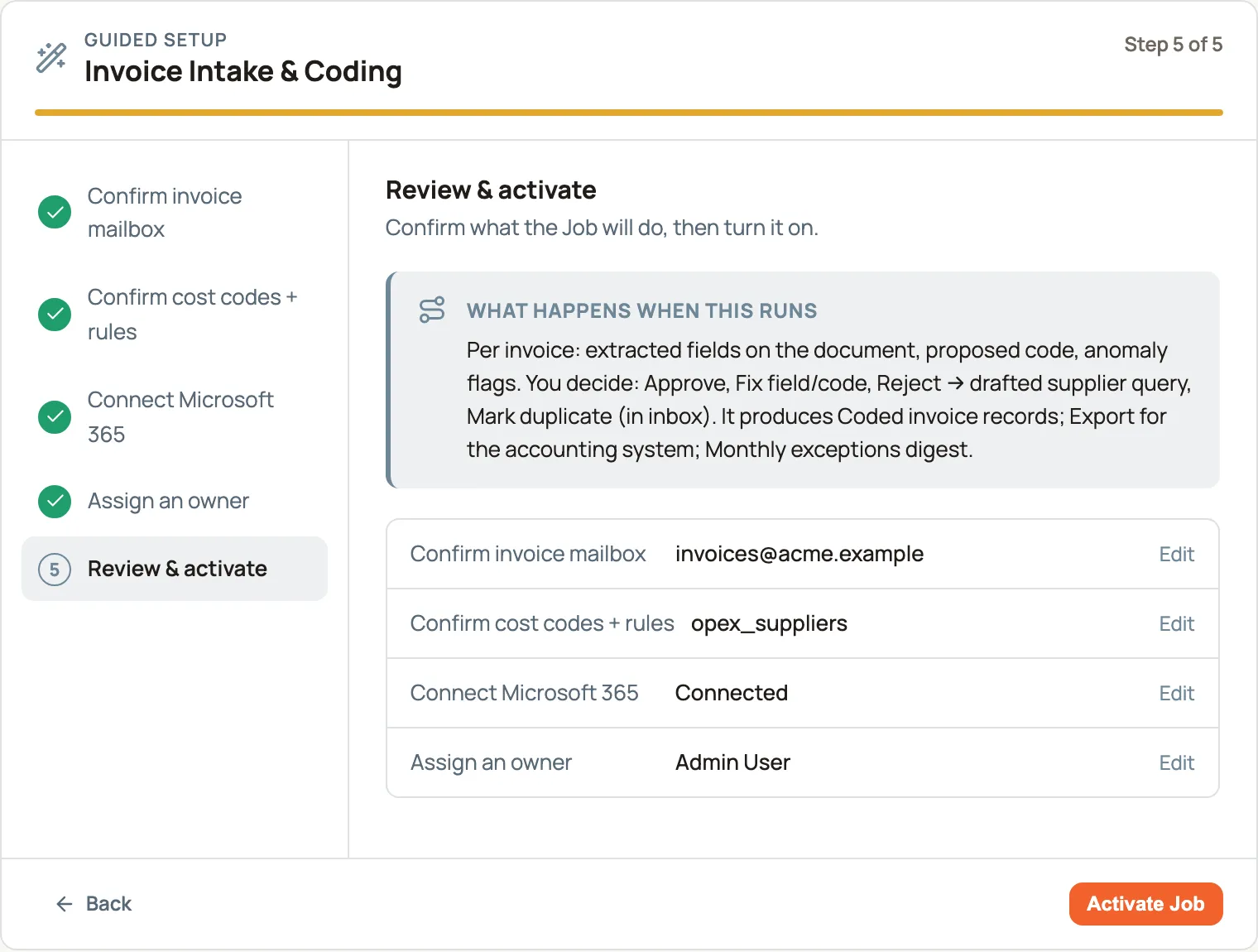
The last step shows you exactly what the Job will do before you turn it on.
Start setup
Section titled “Start setup”Open the Job and press Start guided setup (it reads Continue setup once you’ve begun). You can also reach it straight from the Jobs list — a Job that still needs setup shows Set up as its next action.
Guided setup is a series of steps down the left rail, one requirement each, ending in Review & activate.
Confirm, don’t fill
Section titled “Confirm, don’t fill”Every step arrives with a best guess already filled in — the mailbox Routario detected, the table it found, a sensible default. Your job is to confirm or change it, not to fill a blank form. That’s why the steps say “Confirm…”, and why a pre-filled value looks like a normal editable control, not a finished-and- done badge.
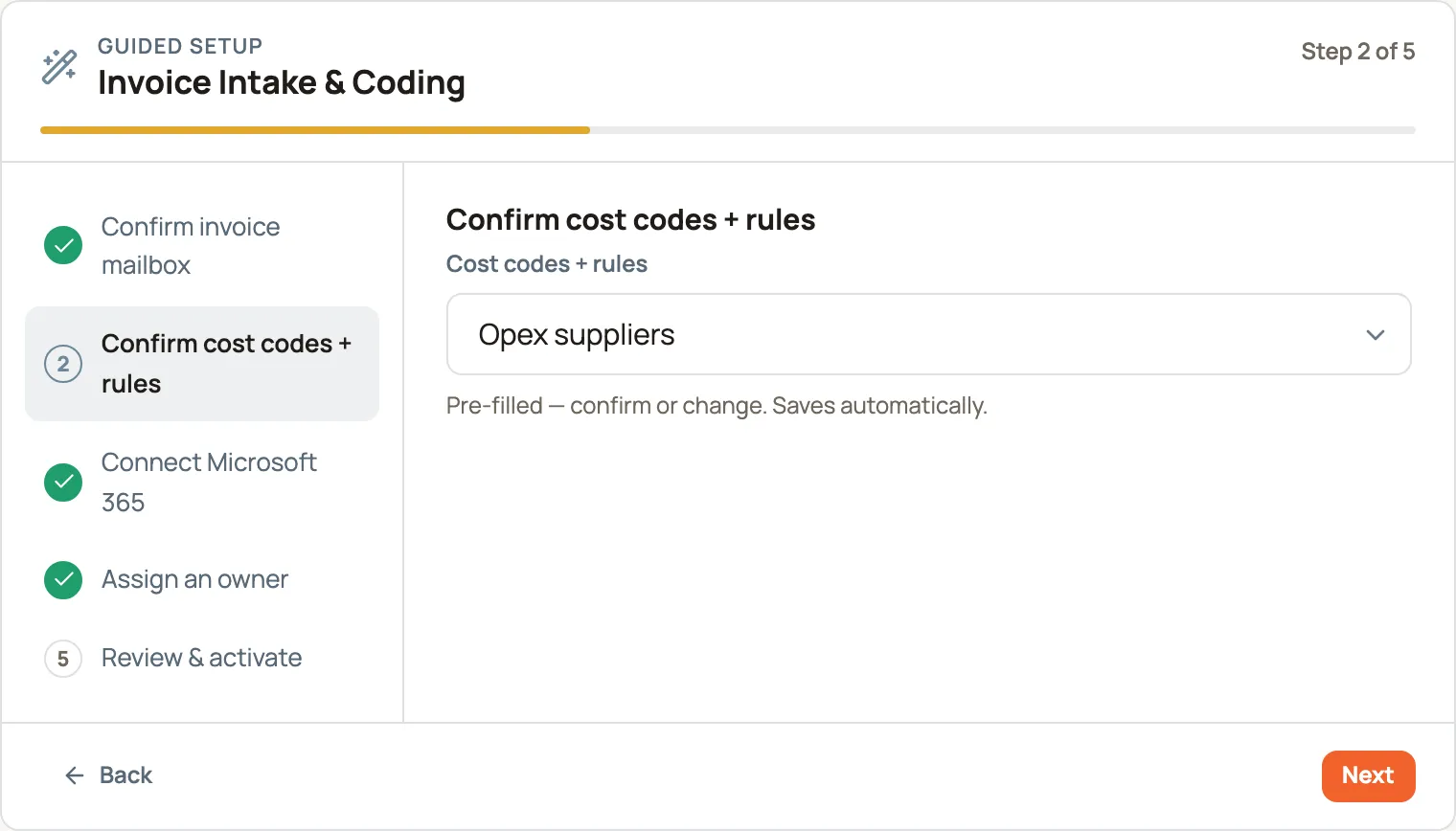
The steps you’ll see depend on what the Job needs. Common ones:
- Connect an account — for a Job that reads email or talks to another system. Connecting is a real, live link, so it’s the one place a green Connected badge is earned. If you need to set it up elsewhere first, connect it, then come back — the step updates itself when you return.
- Confirm a value — a mailbox address, or a table to use. Table steps offer a picker of the tables in your workspace; other values are a simple field. Everything saves automatically as you go, so you can leave and come back without losing anything.
- Assign an owner — every active Job needs someone accountable for it.
You can move between steps freely — click any step in the rail, or use Back and Next. Nothing is locked; nothing greys out.
Review — see what it will do
Section titled “Review — see what it will do”The last step, Review & activate, is the trust payoff. Before you turn the Job on, it shows you in plain language what the Job will do on its first run — what comes in, how it’s handled, and what gets sent to a person to decide.
Below that is a summary of every setting, each with an Edit link back to its step. And if anything essential is still missing, it appears here as a clear “Fix it →” link straight to the step that resolves it — with Activate staying switched off until it’s sorted.
Activate
Section titled “Activate”When nothing’s blocking, Activate Job turns it on. Its flows arm, and it starts doing its work on the triggers and schedules it was built with.
A worked example: an invoice Job
Section titled “A worked example: an invoice Job”Install the Invoice Intake & Coding Job from the catalog. Guided setup walks you through five steps:
- Confirm invoice mailbox — the address invoices arrive at (pre-filled with the one detected).
- Confirm cost codes + rules — pick the table that holds your coding rules, from the ones the Job set up for you at install.
- Connect Microsoft 365 — link the mailbox account; the step turns green once it’s connected.
- Assign an owner — who’s accountable for it.
- Review & activate — read what it’ll do (“a new invoice arrives → it’s read and coded → clean ones file themselves; unusual ones go to a person to approve”), fix anything flagged, and switch it on.
Change values later
Section titled “Change values later”You don’t have to reopen the wizard to adjust a setting. The Job’s Configure page has an Inputs panel listing every value with its current setting, editable in place — it saves as you type, the same as in guided setup.
Where to go next
Section titled “Where to go next”- Jobs — what a Job is, and how the catalog and install work.
- Add a manual action button to a Job — give an active Job a one-press button for an on-demand task.
- Give a teammate or agent the right access — control who can configure and run a Job.