

Manage your sign-in security
Every time you sign in to Routario — from a new laptop, a shared computer, or your phone — that sign-in keeps working until you sign out or it naturally expires. If you’ve ever wondered “am I still signed in on that computer at the library?”, Sign-in & Security has the answer, and a way to fix it without changing your password.
Where to find it
Section titled “Where to find it”Go to Settings → Security (or select your avatar → Security). This is also where you change your password and manage two-factor authentication — see Log in to Routario for those.
See where you’re signed in
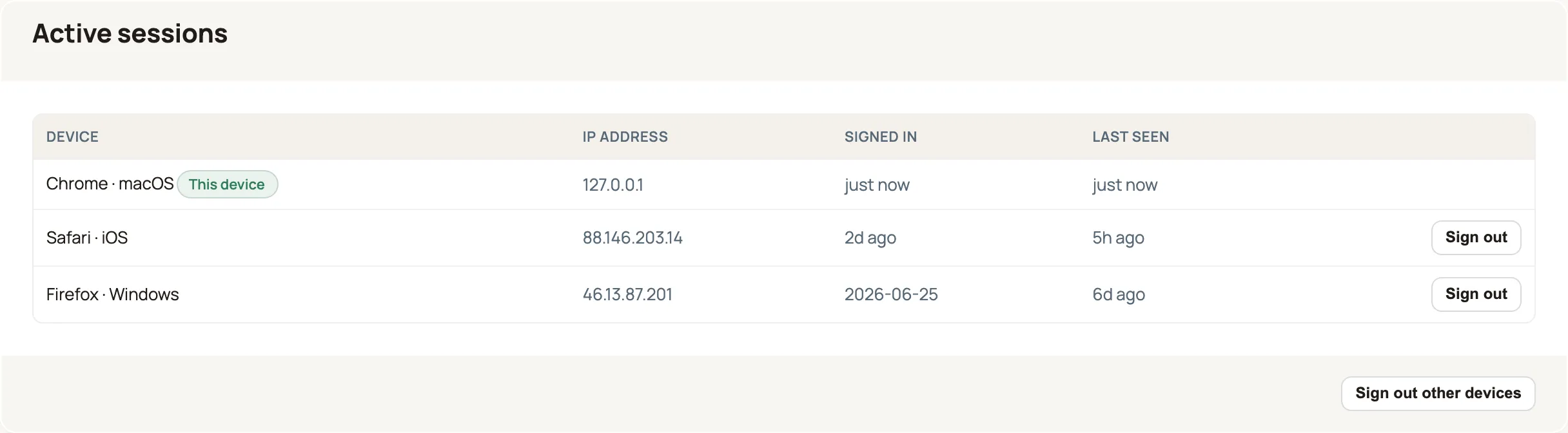
Section titled “See where you’re signed in”The Active sessions section lists every device currently signed in to your account:
| Column | What it shows |
|---|---|
| Device | A short description of the browser/OS (e.g. “Chrome · macOS”) |
| IP address | Where that sign-in is connecting from |
| Signed in | When that session started |
| Last seen | How recently it was last used |
The device you’re using right now is marked This device.
Sign out a device
Section titled “Sign out a device”Found a session you don’t recognize, or a laptop you don’t use anymore? Select Sign out on that row. It ends immediately — the next time anyone tries to use that session, they’re sent back to the sign-in screen.
Your current device has no Sign out button next to it, since that’s not how you end the session you’re using right now — see below.
Sign out everywhere else
Section titled “Sign out everywhere else”If you’ve signed in on a lot of devices over time — or you just want a clean slate — select Sign out other devices. This ends every session except the one you’re currently using, in one click. It appears once you have more than one active session.
Signing out your current device
Section titled “Signing out your current device”To end the session you’re actually using, use Sign out from the account menu (not the Security page) — that’s a normal, deliberate log-out. The Active sessions list is for managing your other sign-ins.
What happens if an administrator deactivates your account
Section titled “What happens if an administrator deactivates your account”If your access is removed, every one of your sessions is signed out immediately — the next thing you try to do sends you back to the sign-in screen, wherever you were signed in. You don’t need to do anything for this to happen; it’s automatic the moment an administrator deactivates the account.
Where to go next
Section titled “Where to go next”- Log in to Routario — accepting an invite, two-factor authentication, and what to do if you’re locked out.
- Give a teammate or agent the right access — for administrators: what an actor can do once they’re signed in.
- Access: who can do what — the model behind Routario’s permissions.