

Recipes: how a check knows what to compare
Every check you run in Match compares two things: a file that should be right, and the data it should agree with. But “compare them” hides a lot of decisions. Which column in your spreadsheet is the price? How do you know that this row and that tile are the same product, when one prints a code and the other doesn’t? Is a blank a mistake, or just something nobody has filled in yet?
A recipe is where those decisions live. It is the method, written down once, so that a check is a small thing: pick a recipe, add two files, run it.
You mostly won’t touch recipes. They sit under the gear on the Match home, not in your daily path, and a check you run every week uses the same one every time. But when a client asks “how do you actually know that price is wrong?” — the recipe is the answer, and it is written in a way you can read out loud.
What a recipe decides
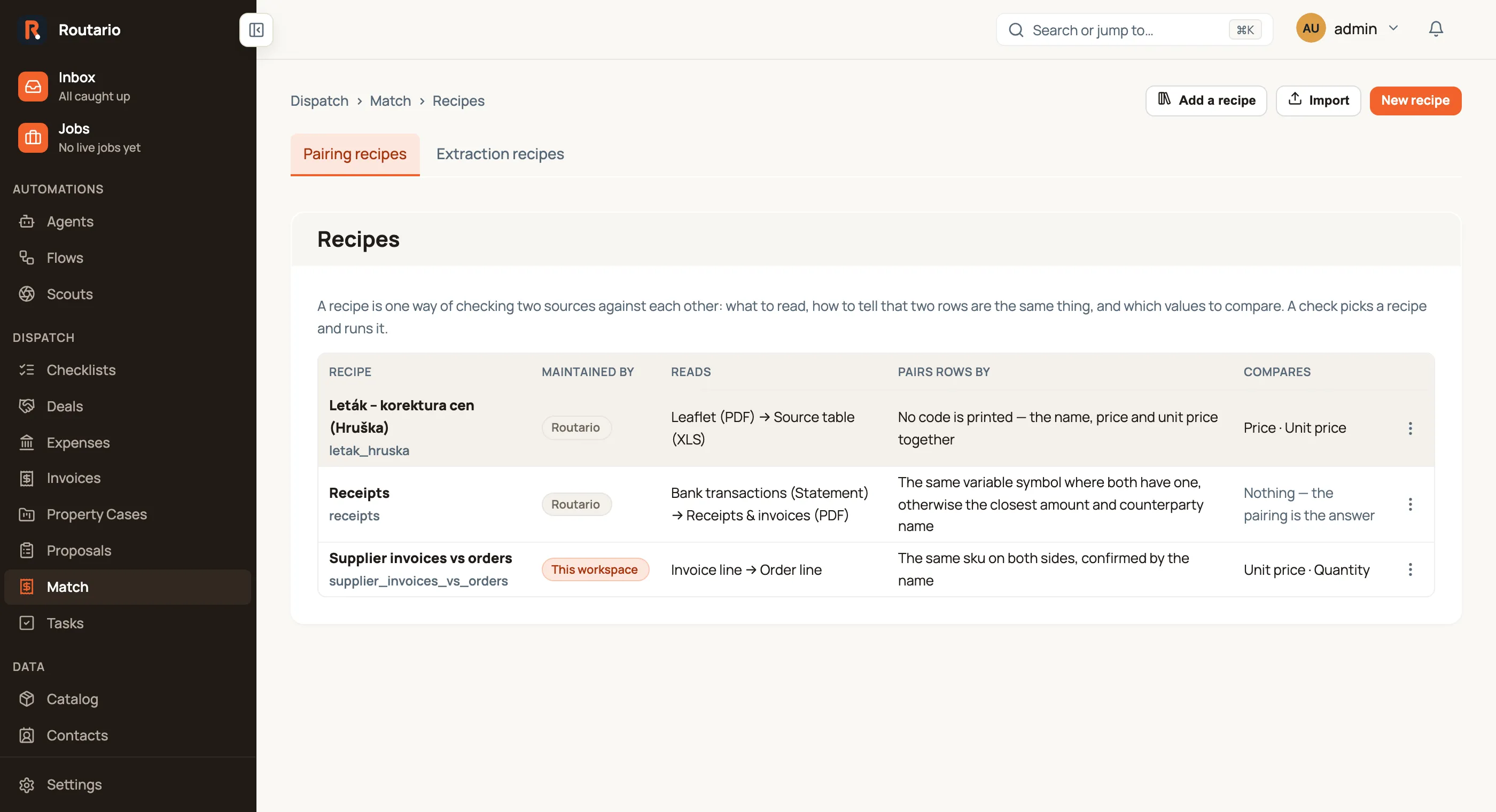
Section titled “What a recipe decides”Three things, and the Recipes list shows them as three columns:
- Reads — what the two sources are. “Leaflet (PDF) → Source table (XLS)”, or “Bank transactions (Statement) → Receipts & invoices (PDF)”. This is the pair the recipe was built for.
- Pairs rows by — how it decides that a row on one side and a row on the other are the same thing. This is the hard part, and it differs enormously by trade.
- Compares — once two rows are paired, which values are checked against each other. “Price · Unit price”. Sometimes the honest answer is “Nothing — the pairing is the answer”: for bank reconciliation, finding the receipt that matches a payment is the whole job, and there is nothing left to compare afterwards.
Three ways to pair rows
Section titled “Three ways to pair rows”Which one a recipe uses depends entirely on what your documents print.
By key — the same code on both sides. The simplest case: your catalogue prints an item code on every tile and your spreadsheet has the same code. Pair on it. Routario can also corroborate the pairing on the product name, so a code that was mistyped shows up as a wrong code rather than being reported as a wrong price — a different problem, sent to a different person.
Closest match — scored on amount and name. Used for bank reconciliation. A payment carries a variable symbol, and where both sides have one it settles the pair outright. Where they don’t, Routario scores the candidates on how close the amounts are and how well the names agree, and takes the best — but only when it is confident enough.
On combined evidence — no code is printed. A grocery leaflet usually prints no code at all: a photo, a name, a price, and 1 kg = 129 Kč. There is no key to pair on, so a row is claimed only when several kinds of evidence agree at once — the name overlaps, the price agrees, the unit price agrees. Any one of those alone would pair the wrong things.
Maintained by Routario, or by you
Section titled “Maintained by Routario, or by you”Each recipe in your list carries a Maintained by badge, and it tells you what you can do with it.
Routario — we set it up and we keep it current. If we improve how a particular kind of leaflet is read, that improvement reaches you without anyone re-importing anything — including after you’ve adjusted it to your own needs (more on that below).
This workspace — it was saved here. It’s yours to edit or delete, and Routario never changes it.
Your list only holds recipes your workspace has been given. Routario maintains recipes built for particular kinds of work, and they are not all relevant to you — a recipe tuned to one retailer’s weekly leaflet has no business appearing on someone else’s screen labelled as part of the product. So you see the ones you use, and everything else waits in a library.
Adding one
Section titled “Adding one”Select Add a recipe on the Recipes page. You get the recipes Routario maintains that your workspace isn’t using yet, each with a line saying what it does. Select Add and it joins your list — and stays current, because adding it links to our copy rather than taking a snapshot of it.
If you stop needing one, Remove from this workspace takes it back out of the list. It never deletes anything: the recipe still exists, you can add it again, and other workspaces are unaffected. A recipe that one of your checks is still running can’t be removed — hiding the method behind results you can still open helps nobody.
Adjusting it to your own needs
Section titled “Adjusting it to your own needs”Open a Routario-maintained recipe, change what you need and save. Your workspace keeps only what you changed — a tolerance, a field, a sentence of instructions — and everything else keeps following our version. So when we improve the recipe later, the improvement still reaches you, and your own settings stay as you set them.
The recipe shows how many settings are yours (2 settings yours), and its page lists each one beside our current value. Use preset gives one setting back; Use the preset for everything gives them all back. If we later change a setting you have also changed, it is marked Preset changed too: yours keeps applying until you decide, because neither of us should overrule the other silently.
Reading a recipe
Section titled “Reading a recipe”A recipe’s page is split into areas along a row of icons at the top — Overview, Checks, Pairing, Values, Unit prices (when the recipe has them) and Sources — and shows one at a time, so you go straight to the part you want instead of scrolling past the rest. The row stays at the top while a long area scrolls under it, and a link to one check opens the Checks area at that check.
Overview says, in plain language, what the recipe does — its Reads, Pairs rows by and Compares — followed by a description of the job it was built for, and, on a Routario-maintained recipe, the settings that are yours. That is usually all you need. Checks lists every check the recipe runs: a switch turns one off or on and saves straight away, and Change settings at the top right of a check opens its settings.
Then the parts you can change, saved together with Save recipe in the bar at the bottom — it says when there are unsaved changes, saves on Cmd/Ctrl+S, and asks before you leave with changes unsaved:
- Basics — its name, and what one row of each side actually is. That’s stored on every decision the recipe makes, so a result can say what it was comparing.
- Pairing rows — which of the three methods above, and the fields it pairs on. On a no-code recipe this shows the evidence table: which fields carry the name, which carry the numbers, and how closely each has to agree.
- Values it compares — one row per checked value: the field on each side, what it’s called in the review, how it’s compared, and the tolerance. How it’s compared matters more than it looks: Text, exact demands a character-for-character match, Text, same wording accepts a rewording of the same product, and Price normalises the pricing basis first — so a counter item listed per kilo and printed per 100 g is judged correctly instead of looking wrong by a factor of ten.
And, under Sources, two sections that explain the recipe rather than let you change it:
Reading the sources. The largest and least visible part of the job. Spreadsheet headers drift between sheets and between weeks — PC, PC klub, Akční MOC, Měrná cena — so a recipe maps your own column names onto the names it works with, and the comparison never has to care which spelling arrived this week. This section shows that mapping, which columns a file must have to count as this recipe’s source at all, and — for printed artwork — the decisions the reader makes about that particular layout, each with what it was measured against. A chain’s currency, the wording of its unit-price line and the figure its discount badge is measured against are settings here too — see Read a leaflet in another language or currency. This is the section to open when someone asks how the check knows which number is the price.
Beyond the comparison. Two things a recipe can do besides compare the two files:
- Checked inside your own data — some problems live in the source, not the artwork. A recipe can check that your own unit price agrees with your own price at the pack size your own product name states, and report a clean factor-of-ten disagreement — a decimal slip — without ever looking at the leaflet.
- Recognising the files — how a file that arrives without anyone choosing a recipe is recognised as this one, from the combination of columns its table carries and what its file names look like. This is what lets a check start from an email rather than a form.
A worked example
Section titled “A worked example”A grocery chain sends its weekly leaflet for proofing. The recipe reads:
| Reads | Leaflet (PDF) → Source table (XLS) |
| Pairs rows by | No code is printed — the name, price and unit price together |
| Compares | Price · Unit price |
Under Reading the sources, their column PC is known here as price, PC klub as club, and kg\L as unit — note that PC klub has to be matched before PC, or every club price would be read as the ordinary one. A file that doesn’t yield a name and a price after that mapping isn’t this recipe’s source table, and the check says so rather than proofing against the wrong sheet.
Under Beyond the comparison, the recipe also checks the chain’s own arithmetic: their unit price against their own price at the pack size their product name states.
So when the review reports “prints 29,90, should be 22,90”, everything behind that sentence is on one page you can show anyone.
Extraction recipes
Section titled “Extraction recipes”The second tab on the Recipes page holds a different kind. A pairing recipe compares two sources; an extraction recipe turns one document — a scanned or digital PDF, an image, or free text — into typed fields with a confidence on each. You author the field list once and apply it in a flow with the Extract step. Same idea, different job: the method written down once so the work becomes routine. When a Job’s flow reads a stored document this way, the document’s page in Memory shows it as that Job’s reading, under the name the recipe gives the document — “opex invoice”, “building-permit notice”.
The rule about your list holds here too. Most extraction recipes are shared — an invoice is an invoice — but one built for a single company, with that company’s own name and tax numbers written into it so they are never read as a supplier’s, is listed only in that company’s workspace.
Where to go next
Section titled “Where to go next”- Proof a catalogue against your source table — running an actual check, start to finish.
- Read a leaflet in another language or currency — the reading settings a recipe carries for a chain’s money, unit-price wording and discount rule.
- Reconcile expenses — the other side of the same machinery: payments against the documents that settle them.
- Check extracted numbers add up — checks that need no second file at all.